
User Management
Overview
The User Management module empowers system-admin to manage newly registered users,manage teams,and change user profiles.
Prerequisites
- User should have a registered account
- User should have System-admin access
1. Pending Registration
This enables system-admin to perform below mentioned activities
A. Approval of new user signup B. Rejection of new user signup
Important Note
- Once a user is rejected, the user has to register again.
- If system-admin don't take any action then it will show Approval Pending.
- Once the system-admin rejects the user, the record will be deleted from the list and then he/she will have to register again and send a new user request to get it approved.
Steps to Approve and Reject Users:-
- Login to the registered account.
- On the left control panel, click on "System Admin" under Management as shown in the video.
- Click on User Management tab and then click on "Users"
- To “Approve” any new signup, click on the tick icon for a particular user.
- To “Reject” click on the Cross Icon for a particular user. Rejected user will be removed from the list
2. Team Management
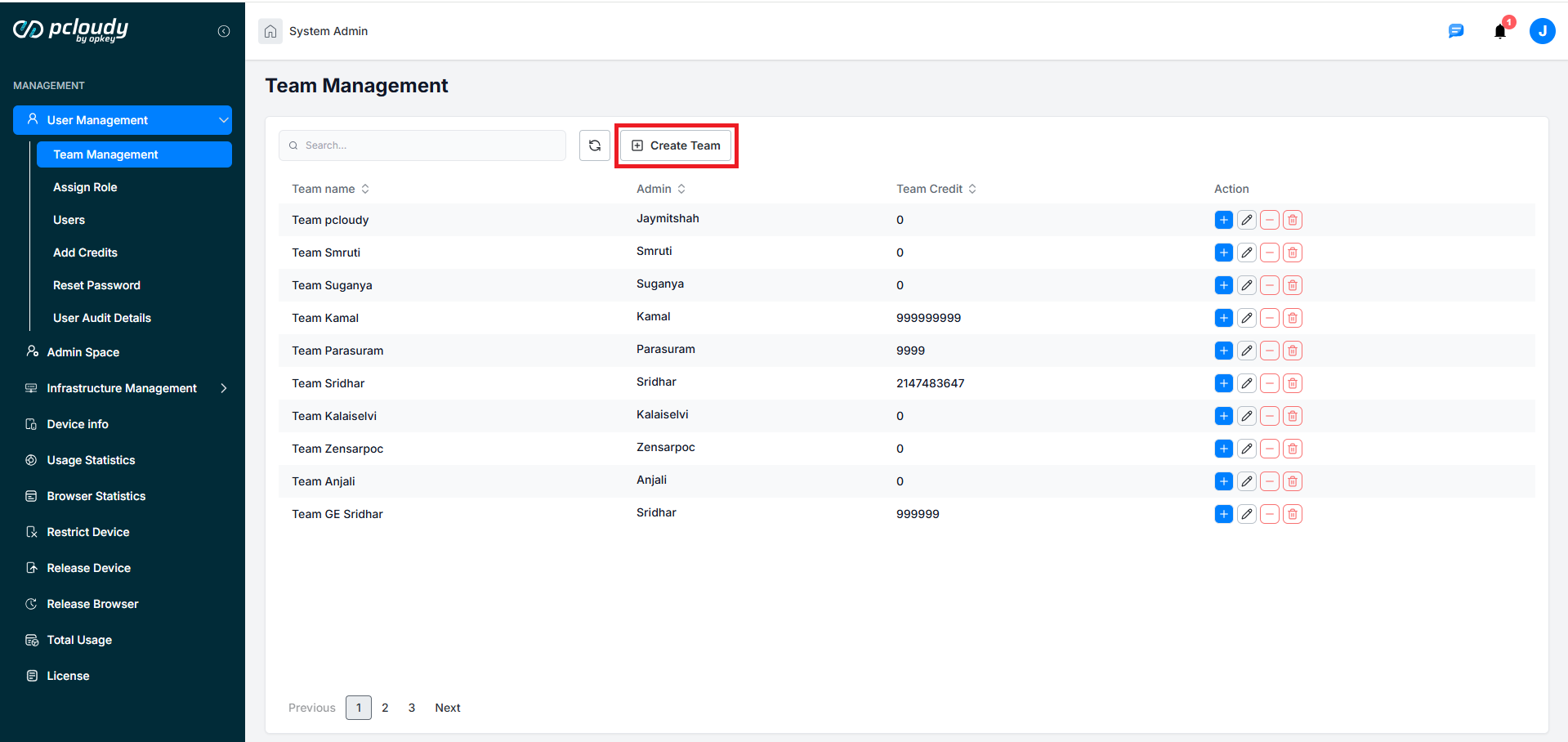
Using Team Management, system-admin can create a team by promoting the approved user as Admin. While promoting a default team name will be assigned for the promoted admin
Important Note
- System Admin can promote any approved user as a Team Admin.
- Default assigned team-name can be edited by team-admin if required.
Steps
Click on "Create Team "as shown in below screenshot
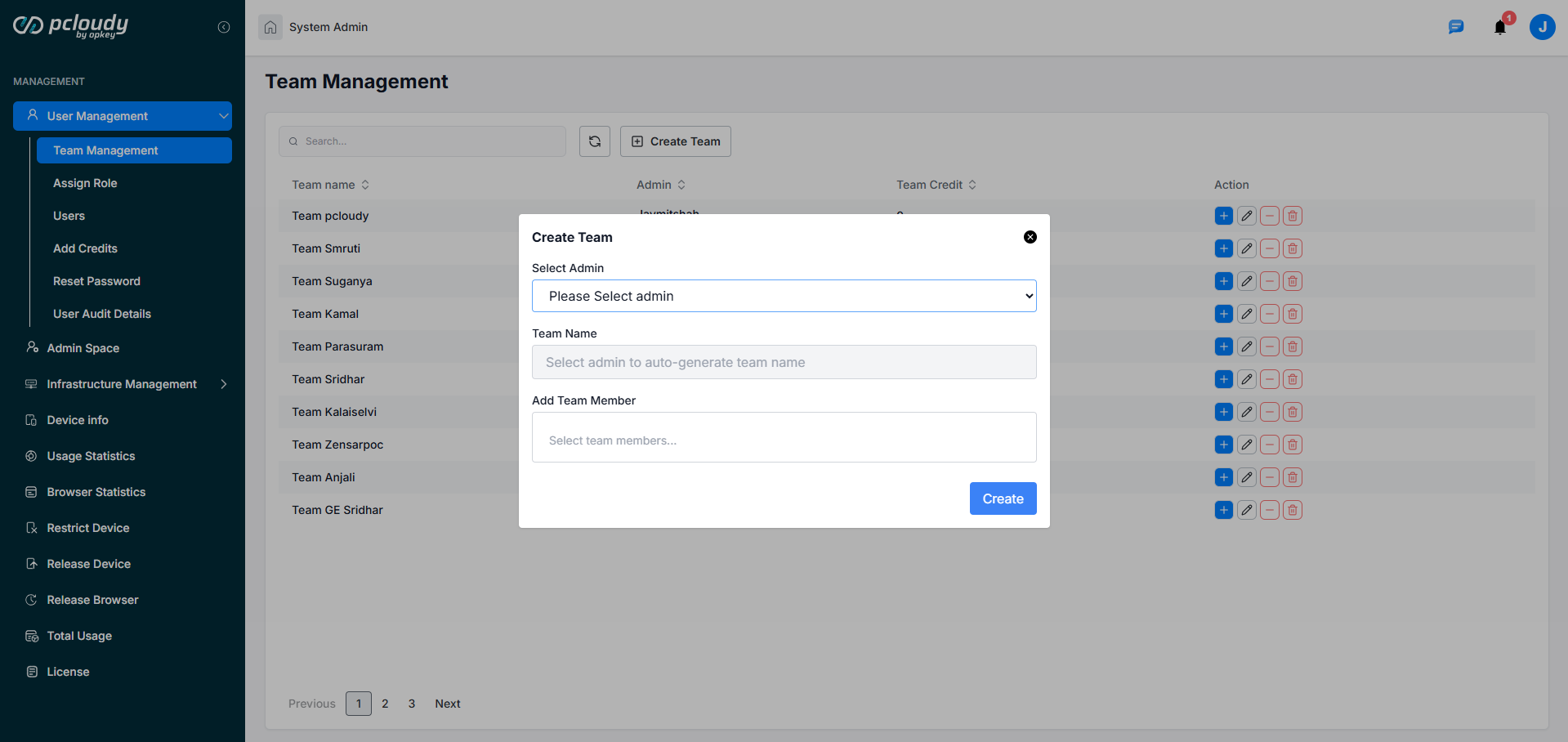
A pop up will appear which consist of two fields
a) Select Admin: - It consists of the name of all approved users. - System admin can choose the name whom he/she wishes to promote as admin.
b) Team Name:
After selecting the name a default team name will be assigned which can further be edited by Admin
Note
- Here system admin can create up to 7 teams by clicking on the Create Team button.
- Number of teams is configurable, as per the need we can increase or decrease the number.
3. Assign Role
This feature enables System-admin to assign another user as system-admin. This is needed to manage the cloud in the absence of current system-admin
Important Note
- All System Admins have the same privilege.
- There is an upper limit on the no of System Admins (e.g. 5).
- There will be minimum one System Admin.
- All System Admins will be informed by email if any action has taken place here at the System Admins level
Steps to add new system admin
- Go to Assign Role tab
- Click on the "Add System Admin" button. A pop up window will appear.
- Enter the email ID in the new window and click on "Add".
- To remove the system admin click on the cross icon under Action.
4. Users
This enables System-admin to view all registered users on the cloud.System-admin will get a list of all the users with their details like Email, Credits, Type(user type-admin,user,system-admin), Team Name and Action.
If the System Admin goes on leave then he/she can make any User/Team Admin as System Admin.
A) Steps to demote any user.(For e..g team-admin demoted to user.)
- Navigate to users tab
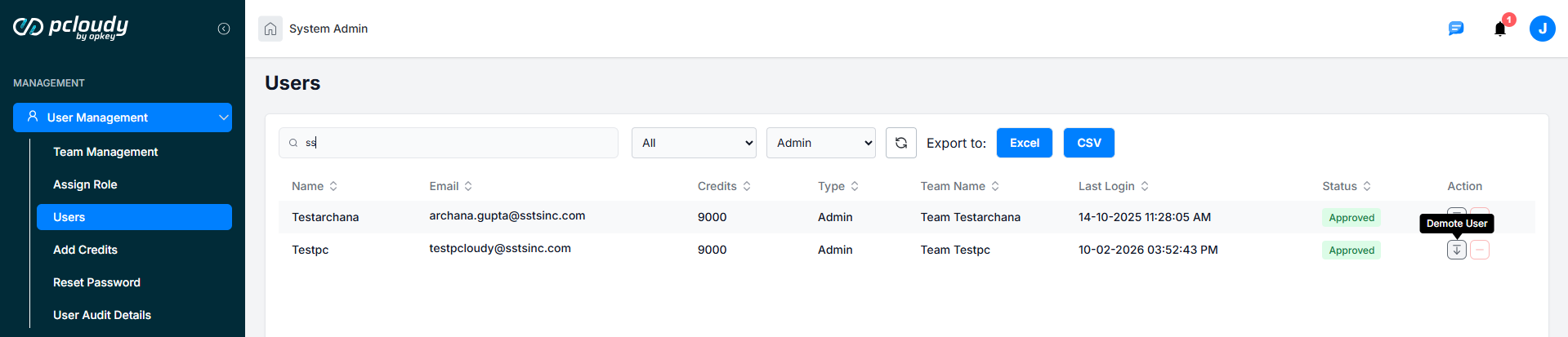
- System admin can filter the user list by their role. To do that, he/she need to click on All dropdown list next to the refresh button as shown in the screenshot below.
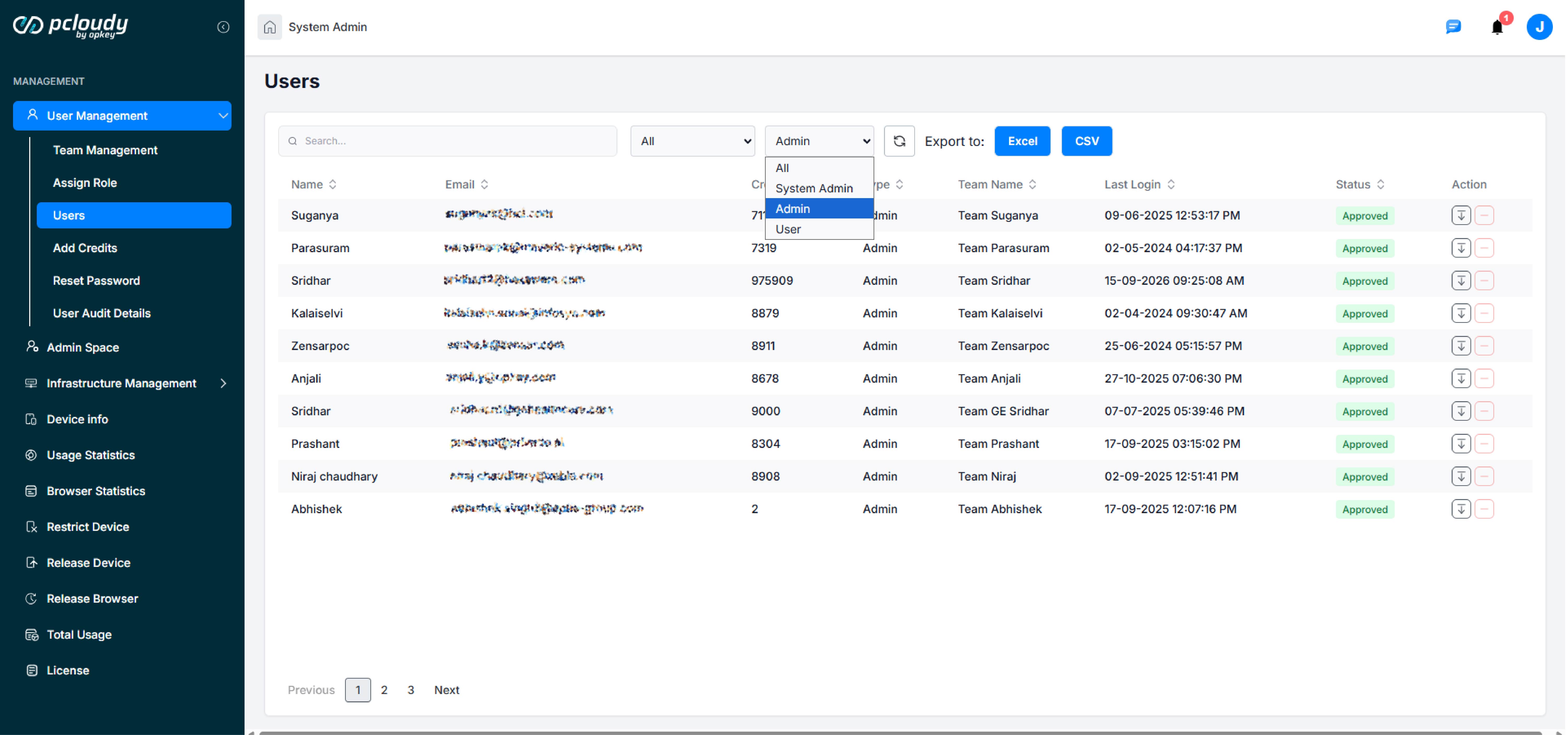
- In the drop-down list, System admin can select the role type, for example, if he/she chooses Admin then it will show a list of all the Admins only.
B) Steps to Demote any registered user
- Under users tab system-admin can get a list of all the users with their details like Email, Credits, Type(user type-admin,user,system-admin), Team Name and Action.
- Click on (down-arrow) icon present under Action tab to demote the current user type.
Note
- If there is a single Team Admin in a team then that Team Admin cannot be demoted unless the team is dissolved.
- System admin can also Demote a Team Admin to a lower role by clicking on the down arrow.
- System-admin cannot be demoted
C) Steps to Deactivate any registered user.
- System-admin can see a list of all the users with their details like Email, Credits, Type(user type-admin,user,system-admin), Team Name and Action
- Click on “Deactivate” present under Action tab to deactivate
Note
- Once the user is deactivated, the record goes to Pending Registration
- Team admin having can first be demoted and then deactivated
Did this page help you?