
Last updated on : 09 Jan 2026
Monitoring Automation Execution on Mobile Devices
Overview
Pcloudy provides real-time monitoring capabilities for your automation test sessions, allowing you to observe test execution on actual mobile devices as they run.
Accessing Active Sessions
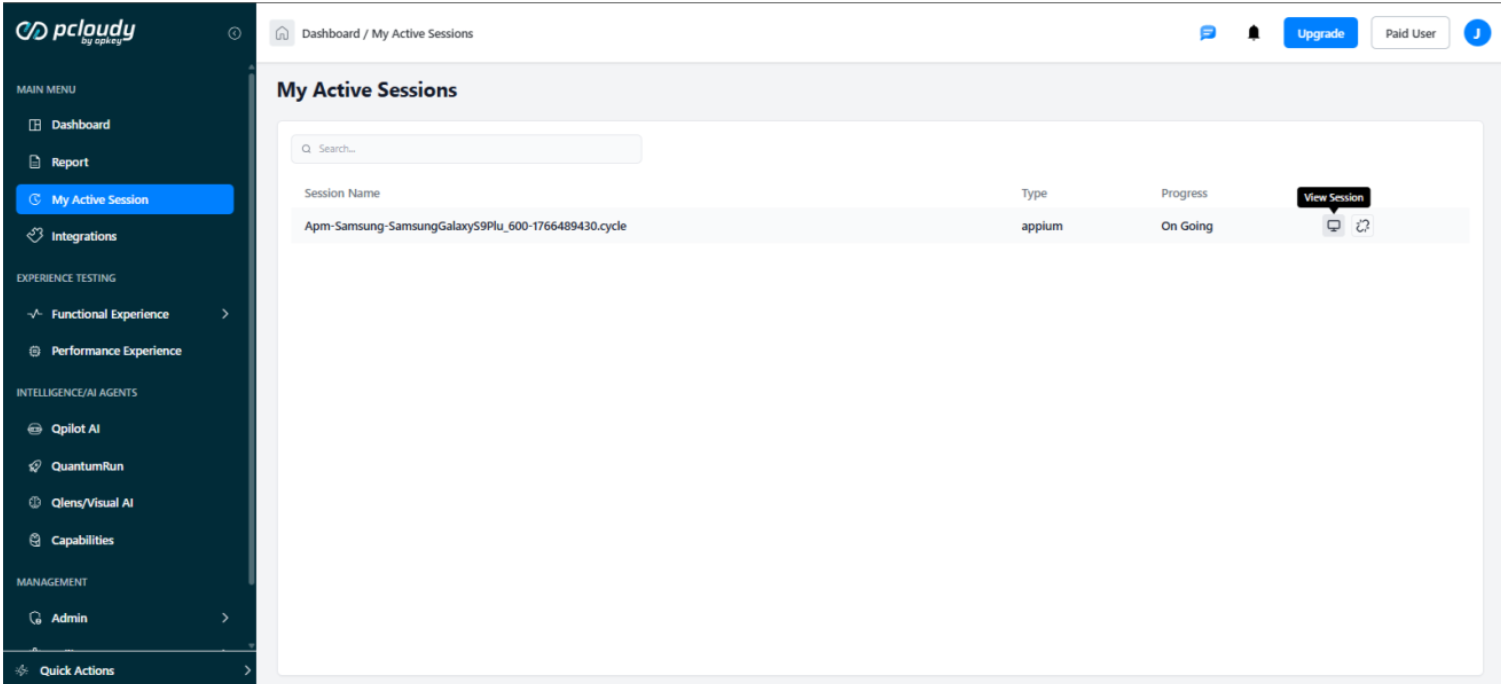
Step 1: Navigate to My Active Sessions
-
From the main menu, click on My Active Sessions
-
View all currently running automation sessions in the table
-
Each session displays:
- Session Name: Unique identifier for the automation run
- Type: Test type (e.g., appium, selenium, manual)
- Progress: Current status (e.g., Not Started, On Going)
Step 2: View Live Session
Click the View Session button next to any active session to open the live monitoring interface.
Live Monitoring Interface
Once you open a session, you'll see a real-time view of the device executing your automation tests.
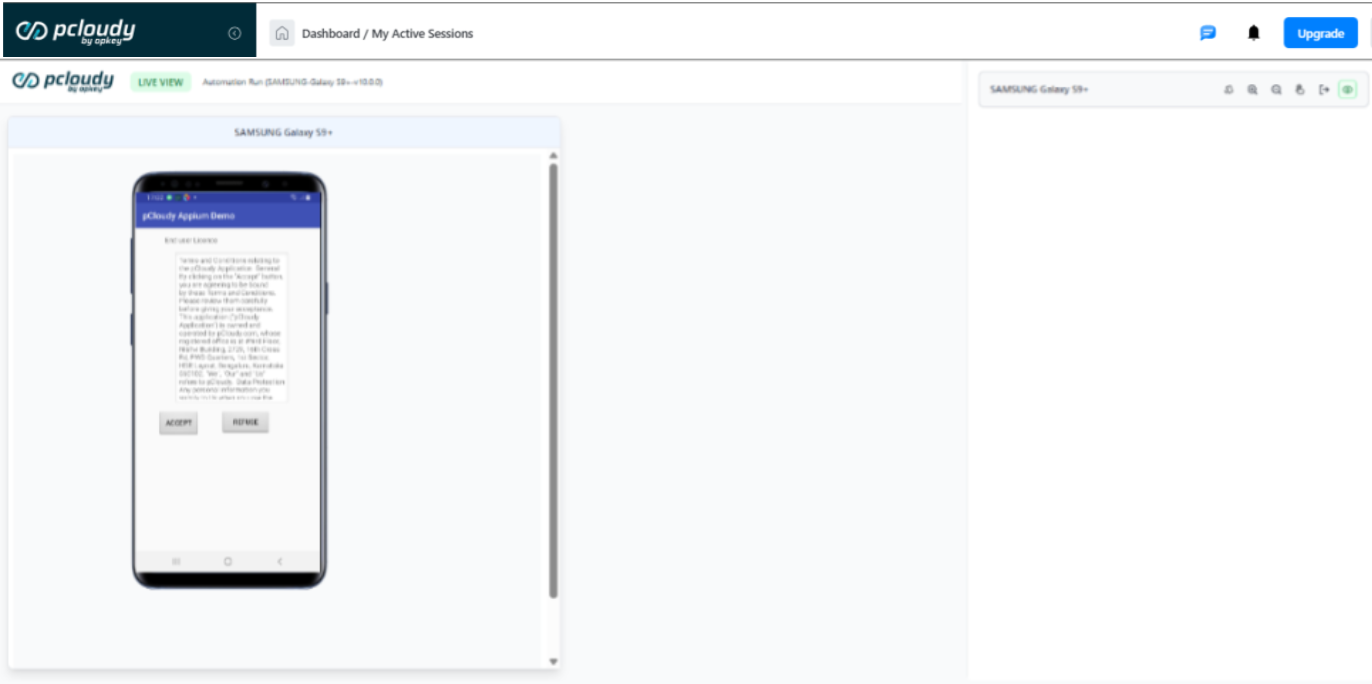
Device Controls
The monitoring interface provides six control options in the top-right corner:
| Icon | Control | Description |
|---|---|---|
| 🔄 | Rotate | Rotate device orientation between portrait and landscape |
| 🔍+ | Zoom In | Zoom into the device screen for detailed view |
| 🔍- | Zoom Out | Zoom out for full device view |
| 👆 | Touch/Manual Interaction | Enable manual touch interaction during automation |
| 📱 | Release Device | End the session and release the device |
| 👁️ | Hide Device | Minimize or hide the device view |
Did this page help you?