 Test with real touch, swipe, and pinch gestures


-
20X
Reduction in Testing Costs
-
10X
Acceleration in Testing Cycle
-
Products Used
Test Infrastructure
Live App Testing
Start testing your apps and websites instantly on real devices. No setup required. Access the world's largest cloud of real Android, iOS devices, and browsers for comprehensive live testing.
Trusted by Leading Enterprises








Live Testing vs Other Testing Methods
Live testing is the process of manually testing mobile applications and websites on real physical devices in real-time through a cloud-based platform. Unlike emulators or simulators, live testing provides authentic user experiences by allowing testers to interact with actual devices remotely, ensuring your app performs flawlessly in real-world conditions.
Why Live Testing Matters

Instant Access
No device procurement or maintenance needed.
Real User Conditions
Test on actual hardware with real OS versions
Global Device Coverage
Access devices from different regions and carriers
Cost-Effective
Eliminate the need for device labs
Faster Time-to-Market
Identify and fix issues before releaseLive Mobile App Testing on Real Devices
Test Native, Hybrid & Web Apps Instantly
Pcloudy's live mobile app testing platform provides instant access to 5000+ real Android and iOS devices. Upload your APK or IPA and start live mobile app testing on real devices in seconds.

Android Live Testing
- Test on 3000+ Android devices
- Support for Android 5 to Android 15
- Access to latest flagships and legacy devices
- Test on different manufacturers: Samsung, Google, OnePlus, Xiaomi, and more.

iOS Live Testing
- Test on all iPhone models (iPhone 6s to iPhone 16)
- Support for iOS 9 to iOS 18
- iPad testing for tablet optimization
- Test on different screen sizes and resolutions
Key Features
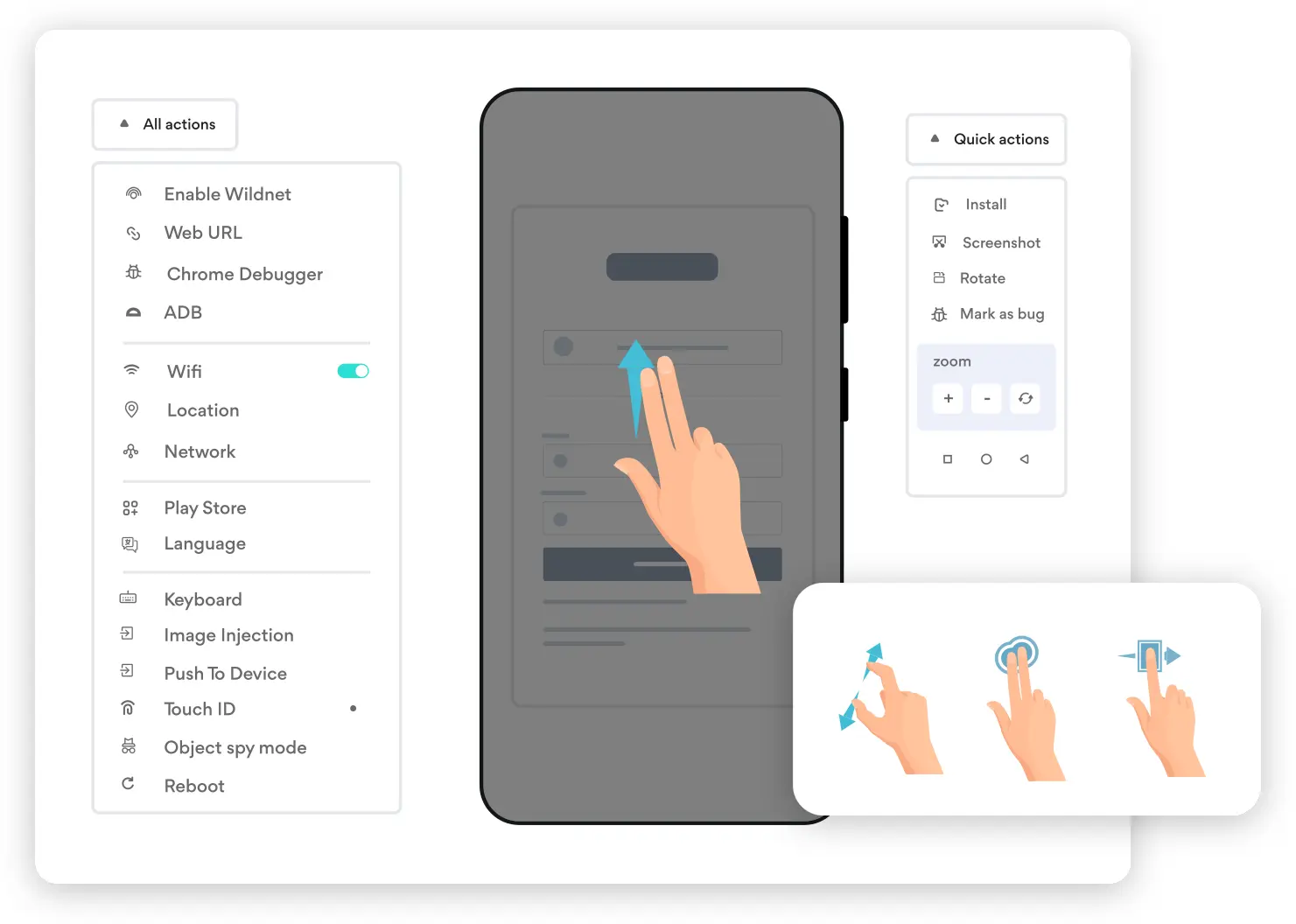
 Test with real touch, swipe, and pinch gestures
- Interact with native app elements naturally
- Multi-touch support for complex gestures
- Test device rotation and shake actions
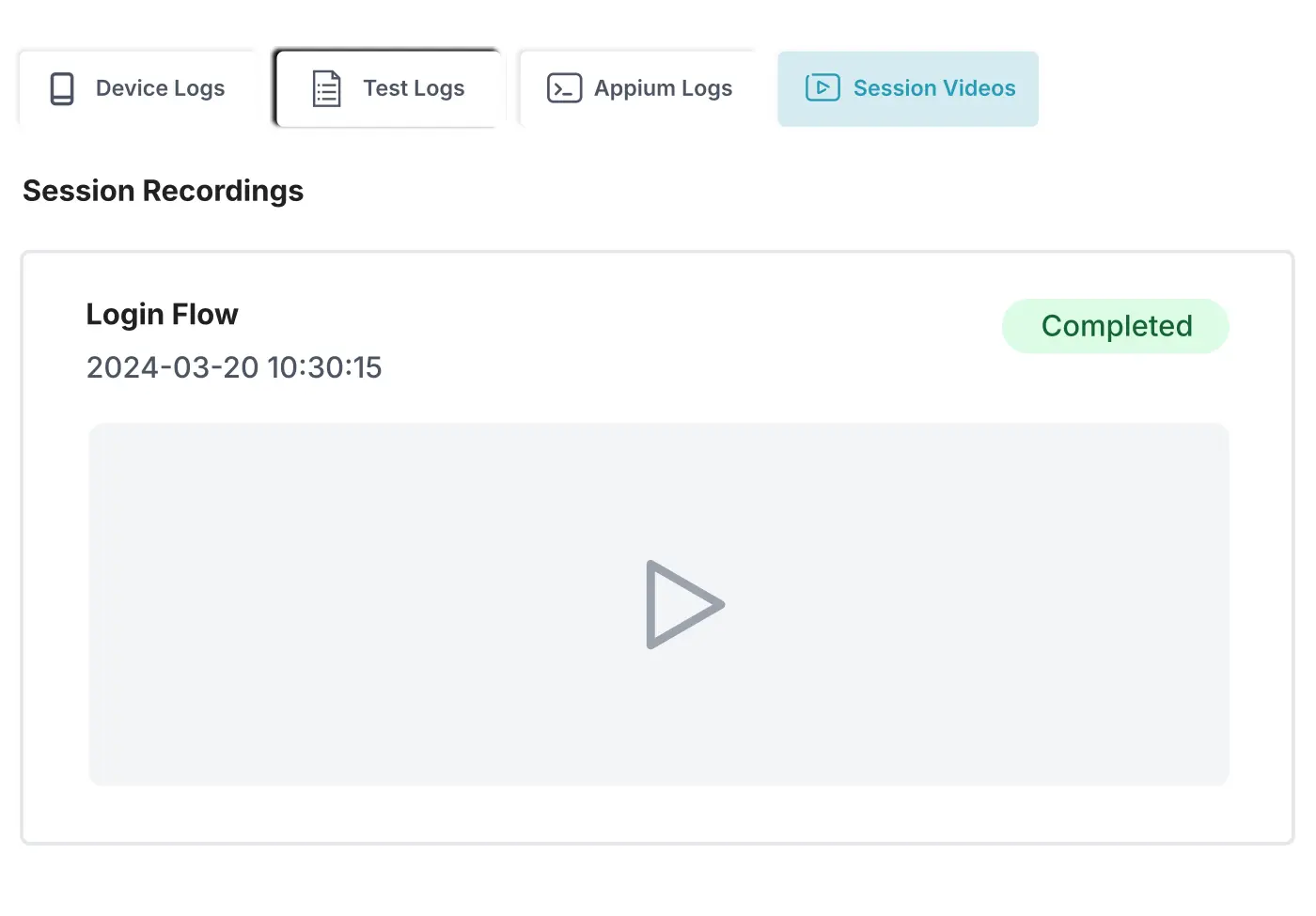
- Capture screenshots during app testing
- Record full test sessions with device audio
- Document crashes and UI issues visually
- Share recordings for bug reproduction
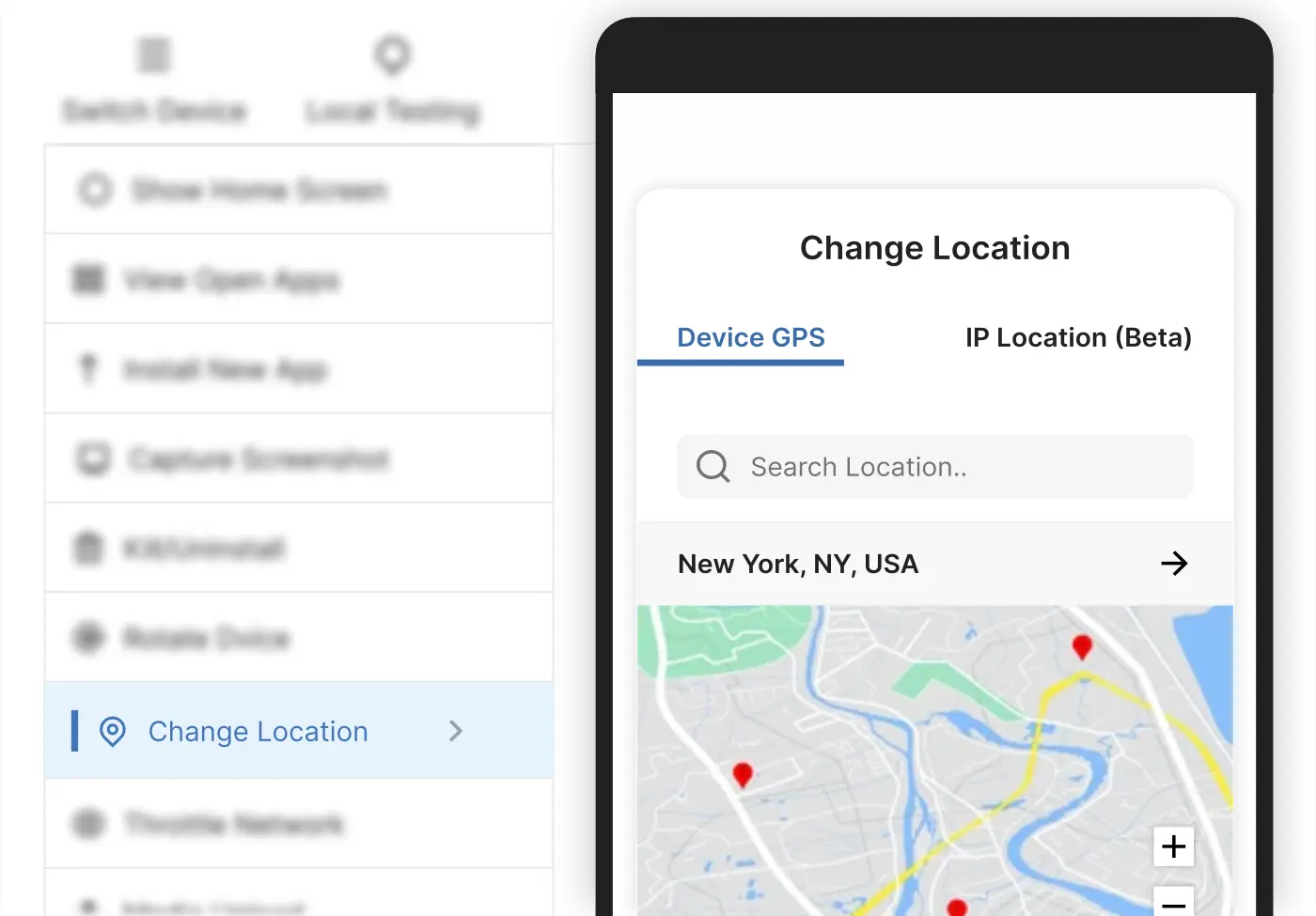
- Test location-based app features
- Simulate movement and routes
- Verify geofencing functionality
- Test location permissions handling
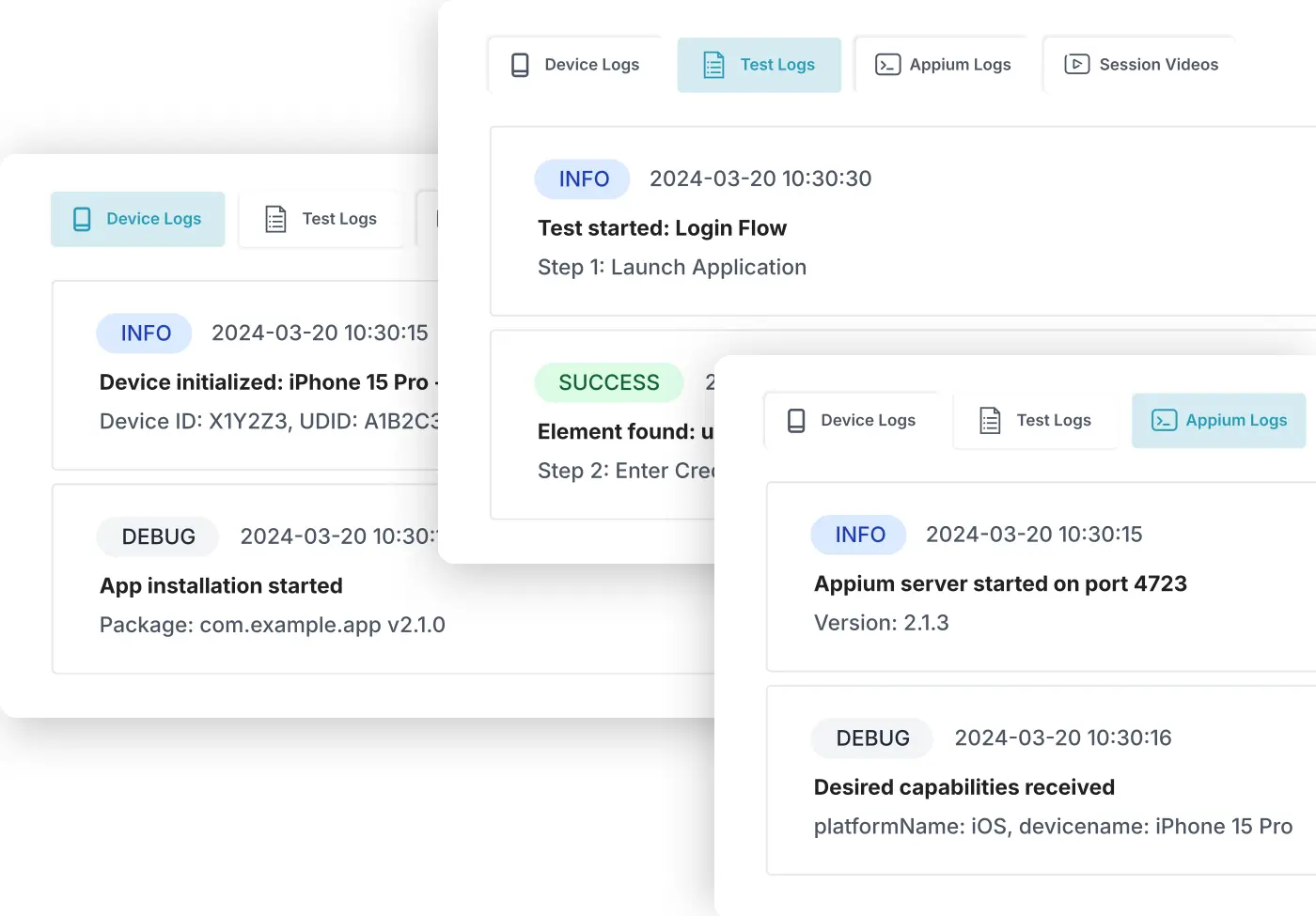
- Access real-time device logs
- View crash logs and stack traces
- Monitor system and app events
- Debug with logcat/console output
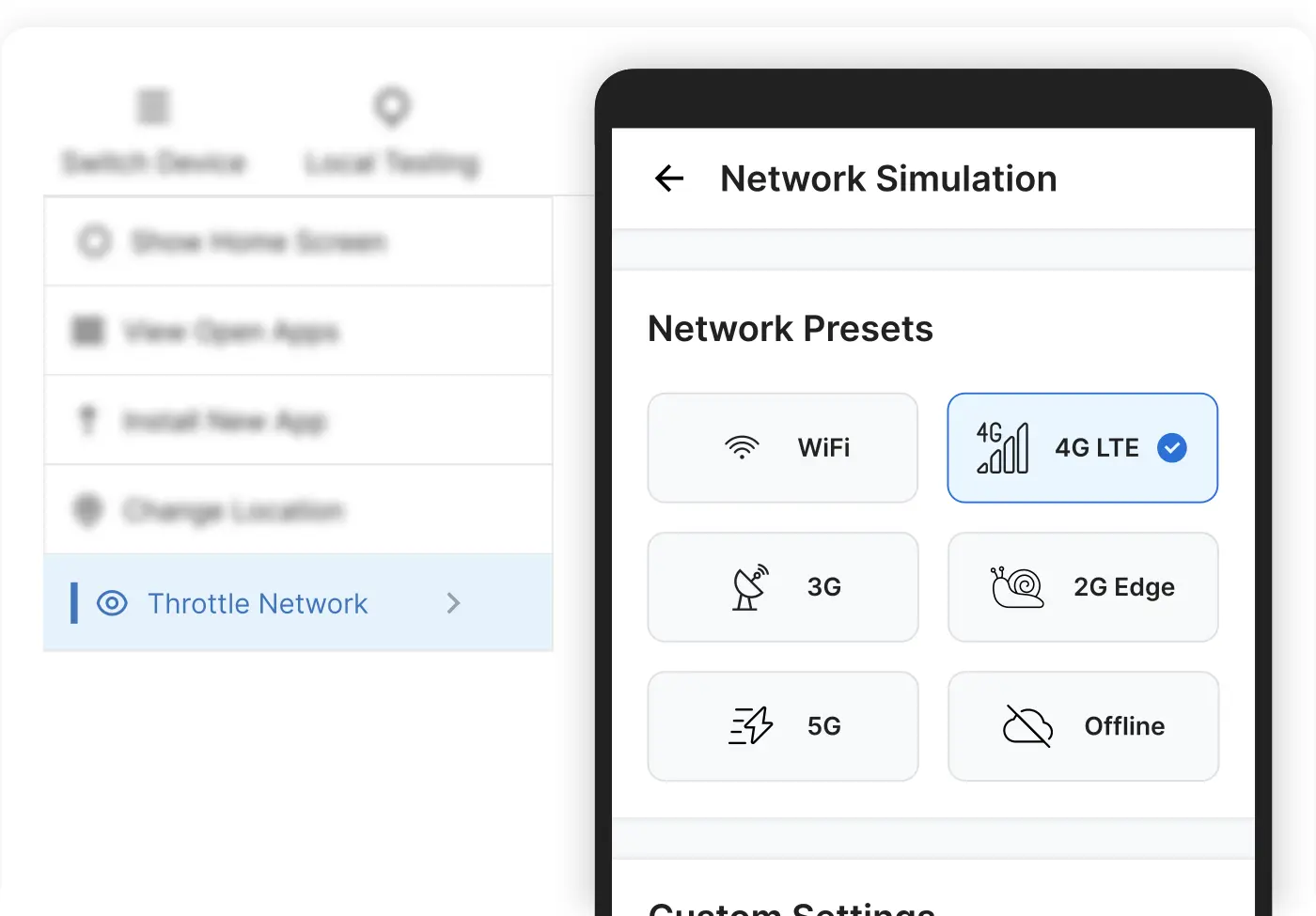
- Test on 2G, 3G, 4G, 5G connections
- Simulate network interruptions
- Test offline mode functionality
- Verify data sync and caching
- Test camera integration and permissions
- Verify barcode/QR code scanning
- Test augmented reality features
- Access accelerometer and gyroscope data
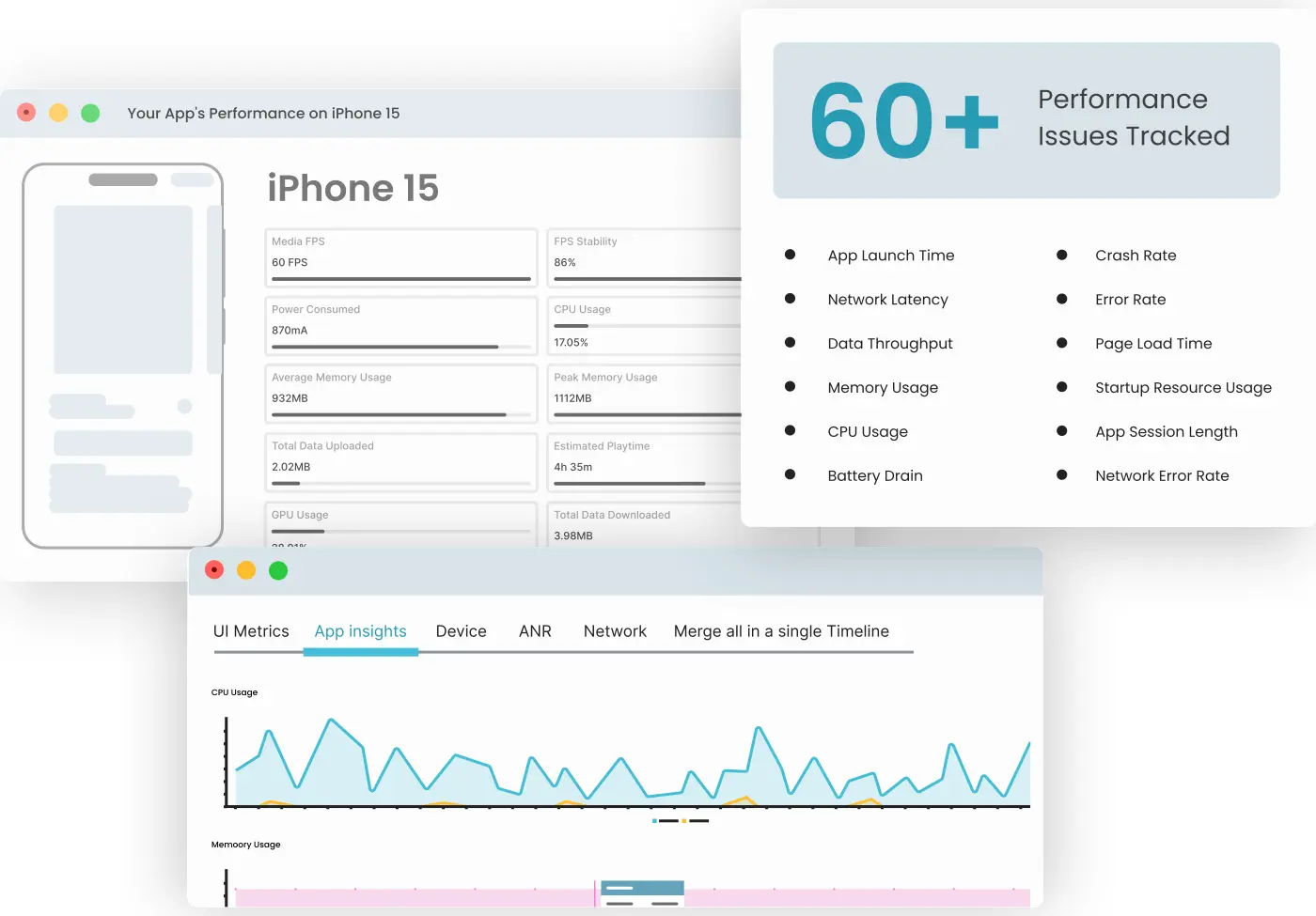
- Monitor CPU and memory usage
- Track app launch time and FPS
- Identify performance bottlenecks
- Analyze battery consumption
Live Web Testing - Cross Browser Testing Made Simple
Live Web Based Browser Testing Across All Platforms
Ensure your website works perfectly across all browsers and devices with Pcloudy's live web testing platform.
Browser Coverage

Key Features
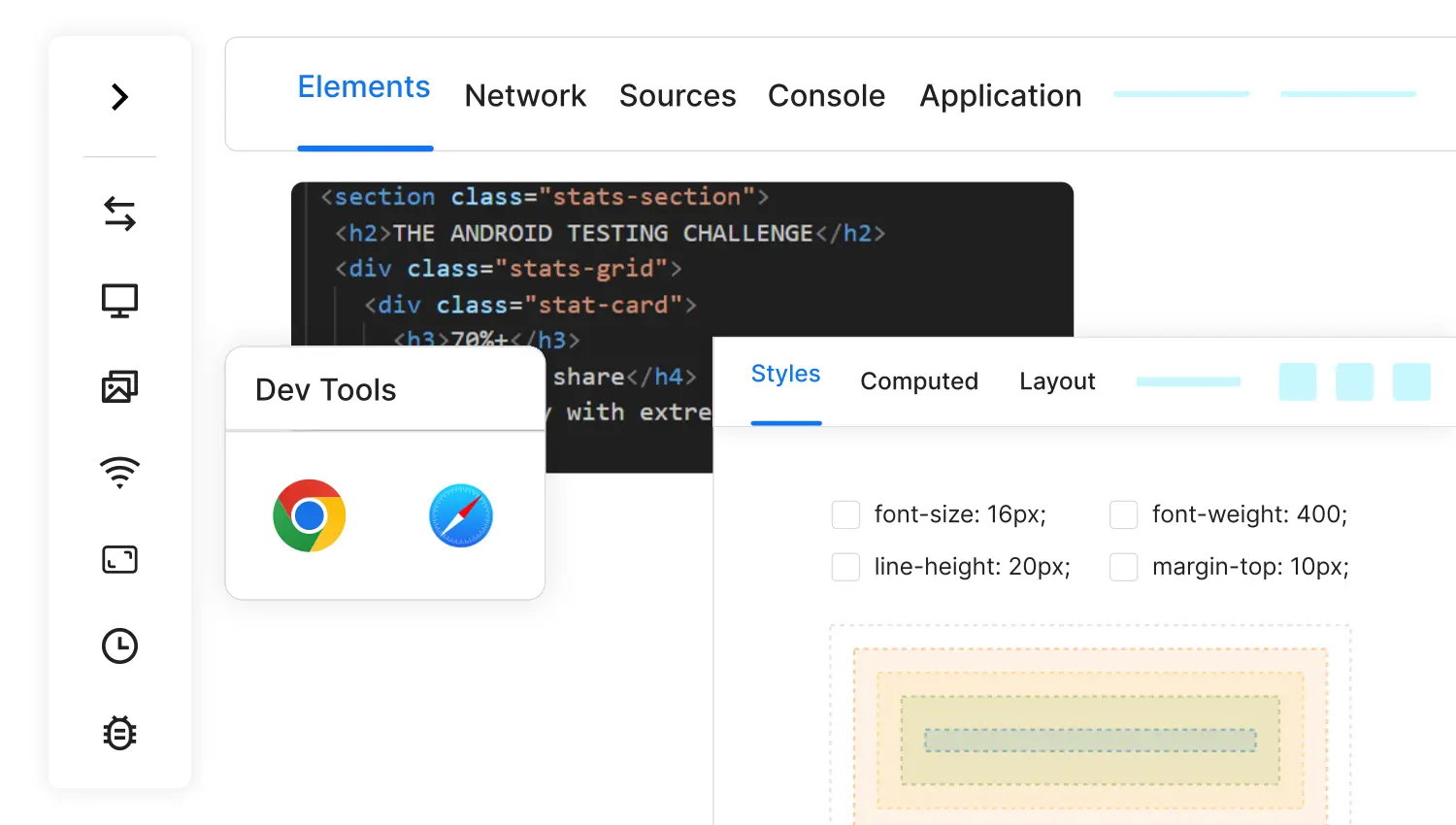
- Full Chrome, Firefox, Safari, Edge DevTools
- Inspect elements and modify CSS live
- Debug JavaScript in real-time
- Monitor network requests across browsers
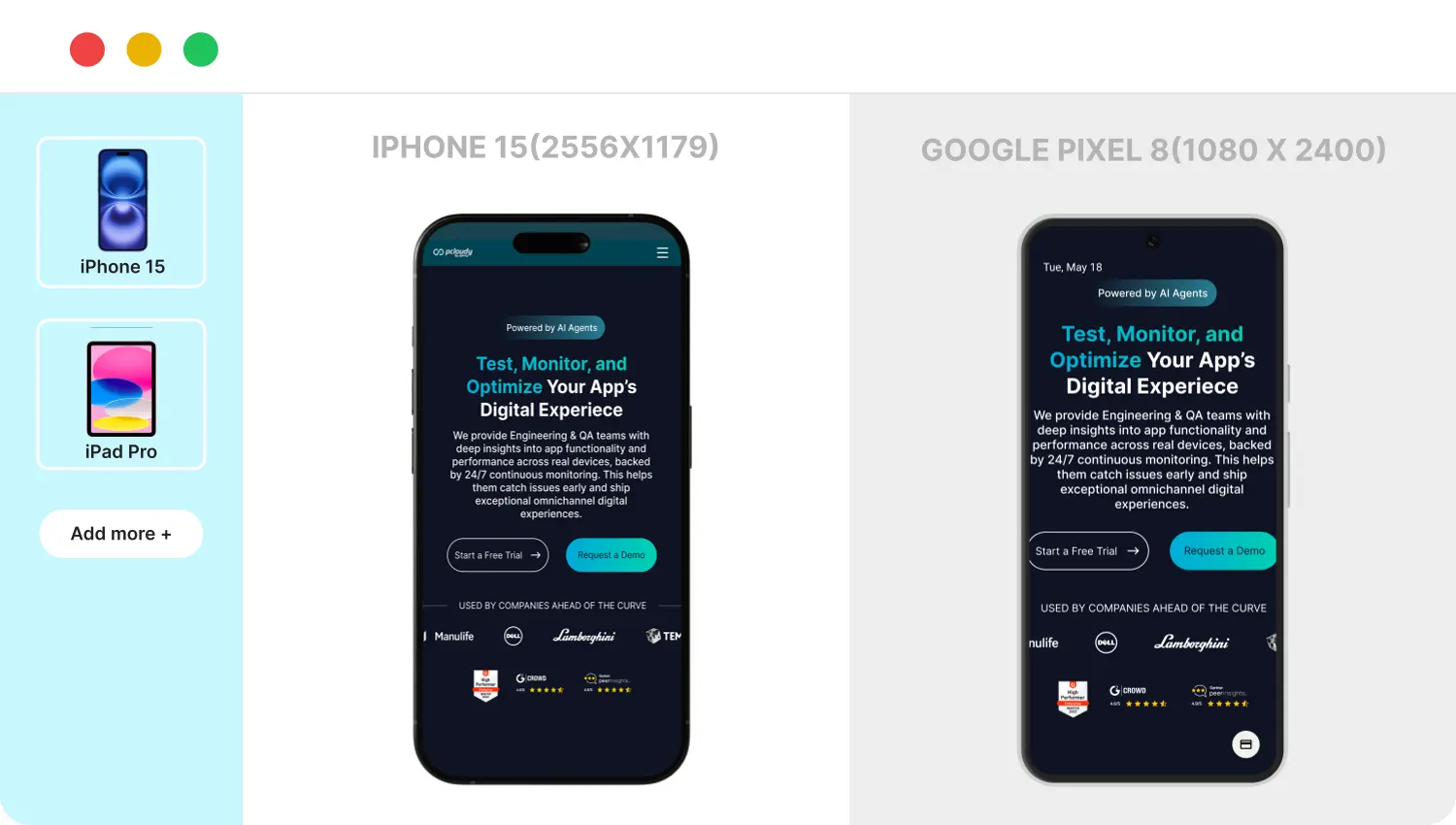
- Test with real touch, swipe, and pinch gestures
- Interact with native app elements naturally
- Multi-touch support for complex gestures
- Test device rotation and shake actions
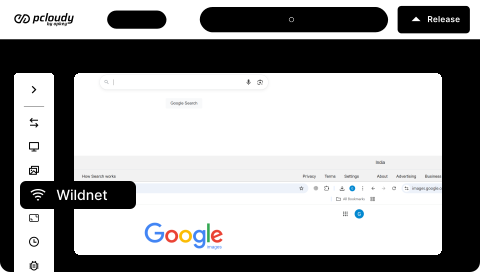
- Test localhost and staging sitess
- Secure tunnel for internal URLs
- Test behind firewalls and VPNs
- No code changes required
- Take full-page screenshots
- Capture specific elements
- Annotate and highlight issues
- Compare layouts across browsers

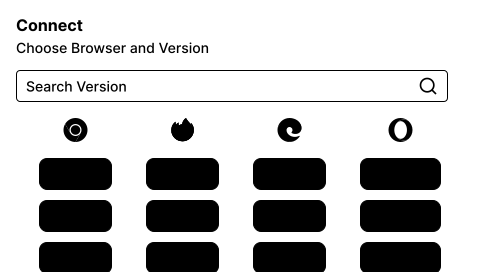
- Access multiple versions of each browser
- Test legacy browser compatibility
- Latest beta and dev versions
- Test on different operating systems
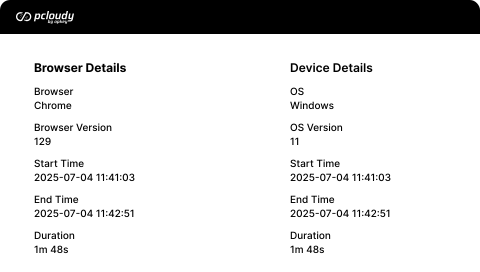
- Record entire testing sessions
- Share session reports with team
- Replay for bug reproduction
- Export as video files
How Live Testing Works on Pcloudy
Get Started in 3 Simple Steps

Sign Up & Choose Device
- Create your free account
- Browse our device catalog
- Select any device instantly


Upload Your App or Enter URL
- For apps: Upload APK/IPA
- For web: Enter your website URL
- No complex setup needed

Start Testing
- Interact with real devices
- Test all features
- Share sessions with team
Live Testing vs Other Testing Methods
| Feature | Live Testing on Pcloudy | Emulators/Simulators | Physical Device Labs |
|---|---|---|---|
| Real Device Experience | Actual hardware | Software simulation | Actual hardware |
| Setup Time | Instant | Hours | Days/Weeks |
| Device Variety | 5000+ devices | Limited | Limited by budget |
| Maintenance | Zero | Regular updates | Constant |
| Cost | Pay-per-use | Free but limited | Very expensive |
| Team Collaboration | Built-in | Difficult | Location dependent |
| Scalability | Unlimited | Limited by resources | Limited by space |
Use Cases for Live Testing
Mobile App Testing Scenarios

Functional Testing
Verify all app features work correctly
Compatibility Testing
Ensure app works across devices
Performance Testing
Monitor app speed and resource usage
Localization Testing
Test different languages and regions
Payment Testing
Verify transaction flows
Push Notification Testing
Validate notification deliveryWeb Testing Scenarios


Cross-browser Compatibility
Ensure consistent experience

Responsive Design Testing
Verify mobile-friendly layouts

Form Testing
Validate input fields and submissions

E-commerce Testing
Test shopping cart and checkout
Progressive Web App Testing
Verify PWA features

Accessibility Testing
Ensure WCAG complianceCase Study
Why High Performing Engineering Teams Trust Us

More Reasons to Trust Pcloudy
Seamlessly Integrates With Your Ecosystem
See All Integrations





A Secured Enterprise-Grade Platform




Frequently asked questions
Live mobile app testing is the process of testing mobile applications on real physical devices through a cloud platform. It allows testers to interact with actual Android and iOS devices remotely, providing authentic testing conditions that emulators cannot replicate.
Live testing involves manual interaction with real devices in real-time, allowing testers to explore the app naturally and discover usability issues. Automated testing runs pre-scripted test cases without human intervention. Both are essential - live testing for exploratory testing and automated testing for regression testing.
Yes! Pcloudy supports live testing for native iOS/Android apps, hybrid apps, progressive web apps (PWAs), and responsive websites. You can test any application type on our real device cloud.
No, all devices on Pcloudy are non-rooted and non-jailbroken to provide authentic user experiences. This ensures your testing reflects real-world conditions accurately.
Immediately! Once you sign up, you can start testing within seconds. There's no setup, installation, or configuration required. Simply select a device and begin testing.


