
The smartphone market has entered a new era with foldable devices becoming mainstream. Samsung’s Galaxy Z Fold and Flip series, Google’s Pixel Fold, and other manufacturers’ foldable offerings are reshaping how users interact with mobile applications. For QA teams, this evolution presents unique testing challenges that traditional mobile testing approaches simply can’t address.
Why Foldable Device Testing Matters
Foldable devices aren’t just larger screens—they’re fundamentally different computing experiences. When a user unfolds their device mid-app, your application needs to respond intelligently. Fail to handle these transitions properly, and you’re looking at:
- Broken user experiences when apps don’t resize or reorient correctly
- Crashes during fold/unfold transitions that erode user trust
- Lost data when state isn’t preserved across screen configurations
- Poor App Store ratings from frustrated early adopters
With foldable device adoption growing rapidly, especially in premium market segments, ignoring this testing dimension means leaving revenue on the table.
Test on real devices. Ship with confidence.
Understanding Fold States and Screen Configurations
Foldable devices operate in multiple physical configurations, each requiring proper app behavior:
Primary Fold States
Unfolded (Tablet Mode): The device is fully open, providing maximum screen real estate. Your app should leverage this space intelligently—think multi-pane layouts, enhanced content visibility, and desktop-like functionality.
Folded (Phone Mode): The device functions as a standard smartphone. Your app needs to adapt gracefully to this compact form factor without losing critical functionality.
Flex Mode (Partially Folded): The device sits at an angle, like a laptop. This opens possibilities for split-screen functionality—imagine video playback on the top half with controls on the bottom.
Cover Screen (External Display): Many foldables have a smaller external screen for quick interactions. Your app needs to handle scenarios where users start tasks here and continue after unfolding.
You might be interested: Testing Apps on Real Foldable Devices
Technical Challenges QA Teams Face
Each transition between fold states triggers configuration changes that your app must handle:
- Screen size and density changes (e.g., 2176×1812 unfolded to 904×2316 folded on Galaxy Z Fold5)
- Aspect ratio modifications that can break fixed layouts
- Window configuration updates triggering onConfigurationChanged()
- Activity lifecycle events (destroy/recreate cycles if not handled properly)
- Multi-window and multi-resume scenarios unique to large screens
- Display cutout and hinge area considerations
The Android documentation recommends apps handle these gracefully, but testing whether they actually do requires access to real hardware across multiple fold states.
The Device Access Problem
Here’s the testing bottleneck most teams hit:
Limited Physical Device Access: A Galaxy Z Fold5 costs $1,800. A Pixel Fold is $1,799. The Oppo Find N3 Fold, Honor Magic V2, Xiaomi Mix Fold—each represents a significant capital investment. Multiply that across different models, OS versions, and regional variants, and you’re looking at $20,000-$50,000 just to build a basic foldable device lab.
Maintenance and Obsolescence: Foldable devices have mechanical components that wear out. Hinges degrade, screens develop issues, and new models launch every year. Your expensive device lab requires ongoing maintenance and replacement costs.
Geographic Distribution: If your team is distributed, sharing physical foldables becomes impractical. Shipping devices internationally is expensive and risky.
The traditional approach of buying and maintaining physical devices doesn’t scale for foldable testing.
Cloud-Based Testing: Accessing Real Foldable Devices
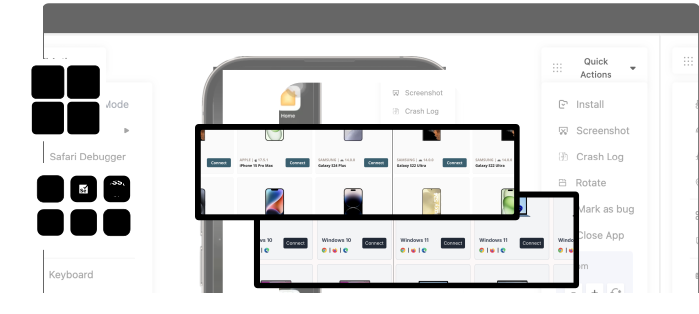
Cloud testing platforms solve the device access problem by providing real foldable hardware on-demand. Instead of purchasing devices, you rent access to them—paying only for the testing time you actually use.
Test on real devices. Ship with confidence.
How It Works
- Device Selection: Log into your testing platform and filter for foldable devices. You’ll see available models like Samsung Galaxy Z Fold/Flip series, Google Pixel Fold, and others.
- Instant Connection: Click to connect, and within seconds you have remote control of a real foldable device. Not an emulator—actual hardware with real screens, real hinges, and real performance characteristics.
- Manual Testing: Interact with the device through your browser or desktop client. Physically fold and unfold the device to test your app’s behavior across state changes.
- Test Execution: Run your manual test cases or execute automated scripts against the connected device.
This approach eliminates capital expenditure while giving your team access to the latest foldable hardware.
See It in Action
Watch how pCloudy provides instant access to real foldable devices like the Galaxy Z Fold5 and Pixel Fold—no physical device lab required.
Connect to real foldable hardware in under 3 seconds and start testing across all fold states immediately.
Critical Test Scenarios for Foldable Devices
Scenario 1: Fold State Continuity Testing
This is the most common source of foldable app failures. Here’s how to test it systematically:
Test Case: Shopping Cart Preservation
- Launch your app in unfolded (tablet) mode
- Navigate to a product listing page
- Add 3-5 items to cart
- Begin checkout process (enter shipping address)
- Fold device to phone mode while on checkout screen
- Verify: Is the cart data preserved? Is the shipping address still filled in?
- Navigate back to product listing
- Unfold device to tablet mode
- Verify: Does the UI adapt to the larger screen? Are all cart items still present?
What You’re Looking For:
- State preservation through configuration changes
- Layout adaptation without data loss
- Proper handling of onSaveInstanceState() and onRestoreInstanceState()
Common Failures:
- Form data lost when folding/unfolding
- Activity restarting from scratch instead of preserving state
- UI elements overlapping or rendering incorrectly after state change
Scenario 2: App Launch and Fold Interruption
Test what happens when users fold their device mid-launch:
Test Case: Launch Interruption
- Start in folded (phone) mode
- Launch your app
- While the splash screen is displaying, unfold the device
- Verify: Does the app complete loading? Does it crash?
- Repeat, but fold device during onboarding flow
- Verify: Can user continue onboarding after folding?
This catches crashes related to incomplete initialization when configuration changes hit during startup.
Scenario 3: Multi-Window Behavior
Foldable users frequently use split-screen multitasking:
Test Case: Split Screen Interaction
- Launch app in unfolded mode
- Open split-screen mode with another app (e.g., your app + Chrome)
- Interact with your app—scroll, tap buttons, enter text
- Switch focus to the other app
- Verify: Does your app properly handle losing focus?
- Switch focus back to your app
- Verify: Does it resume correctly?
- Now fold the device while in split-screen
- Verify: How does your app handle this transition?
Android-Specific Considerations:
- Apps must handle multi-resume (both apps visible and resumed simultaneously)
- Proper implementation of onTopResumedActivityChanged()
- Testing with resizeableActivity=true in manifest
Scenario 4: Flex Mode Optimization
Some apps can optimize for flex mode (device partially folded at an angle):
Test Case: Flex Mode Layout
- Launch app in unfolded mode
- Position device in flex mode (approximately 90-180 degree angle)
- Verify: Does your app detect flex mode?
- Check if content intelligently distributes (e.g., video on top half, controls on bottom)
- Test interaction with both screen halves
- Verify: Is any content obscured by the hinge area?
Implementation Note: Apps detect flex mode using the Jetpack WindowManager library’s FoldingFeature API. If your app doesn’t explicitly support flex mode, it should still render correctly—just not optimized for the fold angle.
Scenario 5: Cover Screen to Main Screen Transition
For devices with cover screens (like Galaxy Z Flip):
Test Case: Cover Screen Continuity
- With device folded, interact with app on cover screen (if supported)
- Start an action (e.g., reading an article, watching a video)
- Unfold device
- Verify: Does the content seamlessly transition to the main screen?
- Test the reverse—start on main screen, fold to cover screen
- Verify: What happens? Does the app minimize? Continue on cover screen?
Expected Behavior: Android’s Continuity APIs should enable smooth transitions, but implementation quality varies significantly between apps.
Test on real devices. Ship with confidence.
Testing Best Practices
1. Test Rapid Fold/Unfold Cycles
Don’t just fold once. Test rapid state changes:
- Fold/unfold 10 times in quick succession
- Monitor for memory leaks (use Android Profiler)
- Watch for UI glitches or performance degradation
- Check logcat for warning/error messages
Why This Matters: Users don’t always fold gently. They’ll rapidly open and close their devices. Your app needs to handle this without accumulating memory leaks or degrading performance.
2. Test With Different Screen Sizes and Aspect Ratios
Not all foldables are created equal:
- Galaxy Z Fold5: 2176×1812 (unfolded), 904×2316 (folded)
- Google Pixel Fold: 2208×1840 (unfolded), 1080×2092 (folded)
- Galaxy Z Flip5: 2640×1080 (unfolded), 720×748 (cover screen)
Test your app on multiple models to ensure layouts adapt properly across different form factors.
3. Test Real User Workflows
Think about how users actually use foldables:
- Starting a task on the cover screen, continuing after unfolding
- Reading in folded mode, unfolding for better viewing
- Multitasking with split-screen while folded/unfolded
- Using flex mode for hands-free video watching
Create test cases based on these real-world scenarios, not just arbitrary fold/unfold actions.
4. Monitor Performance Metrics
Configuration changes consume resources:
- Memory usage: Does memory spike during state changes? Are there leaks?
- CPU usage: Are fold transitions causing CPU spikes?
- Battery drain: Do frequent configuration changes accelerate battery consumption?
- Frame rate: Is the UI maintaining 60fps during transitions?
Use Android Studio’s Profiler or similar tools to capture these metrics during testing.
5. Test Error Conditions
What happens when things go wrong?
- Fold device while app is loading network data
- Fold during an animation
- Fold while keyboard is visible
- Fold during camera preview
- Fold while audio/video is playing
These edge cases often reveal bugs that only occur during configuration changes under specific conditions.
Common Foldable Device Issues
Layout Breaking
- Symptom: UI elements overlap, get cut off, or render incorrectly after folding/unfolding.
- Root Cause: Hard-coded dimensions or fixed layouts that don’t adapt to screen size changes.
- Fix: Use ConstraintLayout, flexible dimensions (wrap_content, match_parent), and configuration qualifiers (sw600dp, sw720dp) for different screen sizes.
State Loss
- Symptom: Data disappears when transitioning between fold states—form inputs vanish, scroll position resets, navigation stack clears.
- Root Cause: Not properly implementing onSaveInstanceState() or not using ViewModel to preserve data across configuration changes.
- Fix: Move data to ViewModel (survives configuration changes) or properly save/restore state in lifecycle methods.
Orientation Lock Issues
- Symptom: App doesn’t rotate or rotates unexpectedly when folding/unfolding.
- Root Cause: Incorrect android:screenOrientation in manifest or not handling configuration changes properly.
- Fix: Use sensor or fullSensor orientation, or handle configChanges=”orientation|screenSize” manually if you must lock orientation.
Hinge Area Intrusion
- Symptom: Important content is obscured by the physical hinge in flex mode.
- Fix: Use WindowManager API to detect fold position and adjust layout accordingly:
kotlin
WindowInfoTracker.getOrCreate(context)
.windowLayoutInfo(context)
.collect { layoutInfo ->
layoutInfo.displayFeatures
.filterIsInstance<FoldingFeature>()
.firstOrNull()?.let { fold ->
// Adjust layout based on fold bounds
when (fold.state) {
FoldingFeature.State.HALF_OPENED -> {
// Device is in flex mode
val foldBounds = fold.bounds
// Reposition content to avoid hinge area
}
}
}
}
Multi-Resume Problems
- Symptom: App doesn’t properly handle being visible but not focused in multi-window mode—videos pause when they shouldn’t, data doesn’t update, etc.
- Root Cause: App assumes onResume() = focused, but in multi-resume both apps receive onResume().
- Fix: Implement onTopResumedActivityChanged() to distinguish between resumed and top-resumed states:
kotlin
override fun onTopResumedActivityChanged(isTopResumedActivity: Boolean) {
super.onTopResumedActivityChanged(isTopResumedActivity)
if (isTopResumedActivity) {
// This activity has focus – resume video playback
} else {
// Another app has focus – pause if needed
}
}
Performance Degradation
- Symptom: App becomes sluggish or crashes when rapidly changing fold states.
- Root Cause: Accumulating resources (bitmaps, network connections) without proper cleanup, or recreating heavy objects on every configuration change.
- Fix: Move expensive objects to ViewModel, use lifecycle-aware components, implement proper cleanup in onDestroy().
Testing Without Breaking the Bank
Cloud testing platforms democratize foldable device testing by eliminating the need for expensive physical device labs. You get:
- Instant access to the latest foldable hardware
- No maintenance costs or device obsolescence concerns
- Pay-as-you-go pricing instead of large capital investments
- Global team access without shipping physical devices
Whether you’re manually testing or running automated scripts, cloud platforms provide the real hardware you need to ensure your app works flawlessly across all fold states.
The Bottom Line
Foldable devices represent the future of mobile computing. They’re already in the hands of premium customers—exactly the users most likely to write detailed App Store reviews when things go wrong.
Testing foldable devices isn’t optional anymore. But it also doesn’t require purchasing $2,000 devices for every QA engineer. Cloud-based testing gives you practical, cost-effective access to real foldable hardware so you can test thoroughly without the overhead.
Your users are already unfolding their devices and expecting your app to work flawlessly. Make sure you’re testing for that reality.
Ready to start testing on foldable devices? Explore Pcloudy’s real device cloud and get instant access to foldable hardware including Galaxy Z Fold, Galaxy Z Flip, and Google Pixel Fold. Test on real devices, not emulators—and ensure your app delivers the seamless experience foldable users expect.
Read More: