
Did you know that, according to StatCounter, Apple’s macOS holds about 10-14% of the desktop OS market share. Linux and Windows users who require Xcode builds or Safari testing are somewhat limited when it comes to running Mac OS due to Apple hardware requirements.
Since hardware dependencies and Apple licensing restrict complete emulation on generic PCs, alternatives are usually dependent on cloud power, Mac platforms, hackintosh setups, or VMS. In this guide, we are going to take a look at the best 10 Mac emulators for PCs in 2026.
Test on real devices. Ship with confidence.
Table of Contents
Mac Emulator vs Virtual Machine Differences
Before QA teams decide on a Mac OS solution for Windows, it’s crucial to get a grasp on what they’re actually using. Even if a tool is labeled as a Mac emulator for PC, it might not be a true emulator.
- Mac emulator
A Mac emulator attempts to mimic Apple and Mac OS hardware architecture. It’s also rare to find 100% hardware level emulation on systems that are not Apple. Even if it exists, it’s highly inefficient because of massive architectural differences between Apple’s integrated hardware ecosystem and PC components.
- Virtual machine or VM
A VM is responsible for running Mac OS inside virtualization software while sharing storage, memory, CPU, etc with a host PC. Most of the seemingly Mac emulators are virtual machine-based, which makes them appropriate for light testing and development. However, they are unable to completely replicate apples, firmware level optimizations or GPU acceleration.
Also Check Out: Real Device Cloud vs Emulator for Mobile App Testing – What Should You Use?
Limitations of macOS Emulators on PC
Why you can get access to Apple’s OS through Mac emulators for Windows, you might often come across some notable limitations that have a direct impact on compliance and reliability. Let’s check out some of those limitations.
- Lack Of Official Apple Support
Mac OS is officially licensed specifically for Apple hardware. When QA teams install Mac OS on a standard PC, it might violate some licensing terms and isn’t supported.
- Incompatibilities With Hardware Driver
Audio drivers, Wi-Fi chips, graphics, acceleration, and other hardware components like these don’t necessarily function appropriately on unsupported PCs.
- Limited Metal Acceleration and GPU
Apps that rely on heavy graphics processing, video rendering, or Metal can severely underperform inside virtual environments.
- Instabilities In Performance Under Load
Mac OS virtual machines can experience slowdowns or crashes while running tools that are resource-intensive or during compilations for large projects.
- Restrictions In App Store Distribution Workflows
Provisioning files, code-signing, and secure distribution pipelines may exhibit inconsistent behaviors or outright fail in non-native environments.
- Concerns With Enterprise Compliance
There are multiple audit and licensing risks associated with unsupported Mac OS installations which is why highly regulated industries don’t often allow for it.
Also Check Out: Real Device Cloud vs Emulator for Mobile App Testing – What Should You Use?
How to Choose a Mac Emulator for PC
Depending on your organization’s compliance needs, QA teams, technical expertise, and development goals, it’s important to choose the appropriate Mac OS VM for Windows or a Mac emulator for PC. Let’s take a look at the parameter check before making this decision.
- Purpose
Why are you using a Mac emulator for PC? Is it development, testing, or browsing? For instance, a cloud Mac is usually enough for Safari compatibility testing, whereas stable code signing support and Xcode performance are musts for complete macOS app development.
- Performance Requirements
Graphics-heavy workflows, iOS builds, and video editing demand much higher GPU acceleration support and CPU allocation.
- Budget Constraints
If you have budget considerations, there are plenty of free virtualization tools appropriate for experimentation. However, for complete scalability and legal compliance, one should opt for Enterprise cloud Macs.
- Sufficiency of Real Hardware Versus Virtualization
VMS are great for UI checks, early development, and learning. However, it is essential to use real Mac hardware for app store releases, Enterprise CI/CD pipelines, and production builds.
Also Read: A Comprehensive Guide to Testing on iOS and Android Platforms
Top 10 Mac Emulators for PCs in 2026
While Apple’s hardware restrictions do make it challenging to find a reliable Mac emulator for PC, here’s a curated list of the top 10 tools to help run Mac OS on PC, build Apple applications, or test Safari environments from Linux or Windows systems. Let’s take a look.
Test on real devices. Ship with confidence.
1. VMware Workstation – Overall The Best macOS VM
Overview:
VMware Workstation is one of the most powerful virtualization platforms that facilitate the configuration and running of Mac OS as a VM on compatible PC hardware by advanced users. As long as proper system configuration is in place, it provides a stable Mac OS performance appropriate for educational, development, and testing use.
Key features:
- Multi OS support for virtualization
- Custom RAM and CPU allocation
- Snapshot functionality with restore
Pros:
- Highly reliable snapshot management.
- Better stability in comparison with free tools
Cons:
- Doesn’t offer support for Mac OS installation
- Paid license is a must
Best for:
Developers who require a stable Mac VM for experimentation and testing.
Pricing:
Paid license available with trial
2. VirtualBox – Leading Free macOS VM Option
Overview:
VirtualBox is an open source and free virtualization platform configurable for running Mac OS on PC hardware. Even those setup calls for some technical knowledge, it’s still one of the leading experimental options to run Mac OS on Windows.
Key features:
- Support for snapshot
- Open-source virtualization engine
Pros:
- Free of cost
- Lightweight and easy installation
- Big support community online
Cons:
- Complexities and manual configuration
- Lower performance and comparison with premium tools
Best for:
Professionals experimenting with multiple Mac OS environments.
Pricing:
Free of cost
3. QEMU – Excellent Open-Source Emulator Framework
Overview:
QEMU is a virtualization platform and a hardware emulator that can emulate plenty of CPU architectures. Advanced users can experiment with macOS environments by configuring QEMU, therefore, making it out to be a technically demanding yet flexible solution.
Key features:
- Hardware-level support for emulation
- Open source framework
- High customizability with CPU architecture settings
Pros:
- Offers support for multiple architectures
- Highly active and supportive developer community
Cons:
- Significant variations in performance
- Steep learning curve
Best for:
Advanced users that need granular virtualization control
Pricing:
Free of cost
4. Hackintosh – Top DIY Native Installation
Overview:
Hackintosh is about directly installing Mac onto compatible PC hardware with the help of bootloaders such as OpenCore. When correctly configured, it is capable of delivering a neonative performance.
Key features:
- High performance if compatibility is present
- custom bootloader configuration
- Native-like hardware performance
Pros:
- Complete desktop experience
- Better performance as compared to VMs
Cons:
- Calls for frequent maintenance
- Carries some licensing concern
5. MacStadium – Top Cloud Mac Provider
Overview:
MacStadium offers remote access to actual Apple hardware hosted in data centers which allows users to legally run Mac OS on PC through remote desktop access.
Key features:
- Seamless CI/CD integration
- Enterprise infrastructure
- Realm hardware
Pros:
- 100% compliance with Apple licensing
- High scalability for teams
- Highly reliable performance
Cons:
- Needs a stable internet connection
- Subscription cost can add up
Best for:
DevOps teams and enterprises
Pricing:
Subscription-based
6. Amazon Web Services (EC2 Mac Instances) – Ideal for Enterprise CI/CD
Overview:
AWS provides dedicated EC2 Mac instances that real Apple hardware powers. Such instances facilitate integration with Enterprise pipelines and promote scalability in accordance with the demand.
Key features:
- Highly secure cloud infrastructure
- One of the best, CI/CD scalability
- Dedicated Mac instances
Pros:
- Highly reliable uptime
- Scalability in compute power
- Enterprise compliance
Cons:
- Needs cloud expertise
- Skyrocketing costs
Best for:
Development teams working at a larger scale
Pricing:
Billing is based on usage
7. Docker-OSX – Great for Container-Based macOS Testing
Overview:
Docker-OSX is one of the top choices for container-based macOS testing as it enables experimental macOS virtualization for CI/CD testing scenarios within docker containers.
Key features:
- Lightweight configuration
- Containerized Mac OS environments with CI/CD integration
Pros:
- Utilizes automated pipelines
- One of the top choices for experimentation
Cons:
- Unsuitable for production builds
- Complexities and setup
Best for:
DevOps experimentation
Pricing
Free of cost
8. UTM – Best for ARM Experimentation
Overview:
If you’re looking forward to ARM experimentation, UTM can turn out to be a top choice. It’s a visualization platform that offers support for experimentation based on ARM as well as custom macOS test environments.
Key features:
- Modern UI with flexible configuration
- Top-notch arm support
Pros:
Availability of a free option
Cons:
- Limitations with Enterprise support
- Variability in performance
Best, for:
Developers aiming to test ARM workflows
Pricing:
Free to use with option for paid support
9. Xcode (through Cloud Mac) – Great for Native Development
Overview:
Xcode via cloud Mac is a great option for native development. Developers can use a cloud-hosted Mac to access Xcode to get the official Apple tool chain without having to own any physical hardware.
Key features:
- Compatibility with app store distribution
- Support for native debugging
- Access to official Apple build tools
Pros:
- Highly accurate development environment
- Full supported workflow
Cons:
- Doesn’t offer standalone option for PC
- Cloud Mac subscription is a must
Best for:
Mac OS and iOS developers
Pricing:
Dependent on cloud provider
10. Parallels Desktop (Advanced Nested Setup) – Top Hybrid Setup
The advanced nested setup of parallel desktop is one of the best hybrid setups out there. Primarily designed keeping macOS virtualization on Mac in mind, its advanced nested setups facilitate experimental hybrid workflows.
Test on real devices. Ship with confidence.
Key features:
- Highly optimized Mac OS integration
- High performance virtualization
Pros:
Robust performance when it comes to supported environments
Cons:
- Arising complexities with configuration
- Not natively built keeping Windows PCS in mind
Best for:
Advanced experimental setups
Pricing:
Comes with a paid license
| S. No. | Tool | Type | Official / legal compliance | Performance | Free option | Best for |
|---|---|---|---|---|---|---|
| 1. | VMware Workstation | Virtual machine | Not officially supported | VM-based stable performance | Free trial | Stable Mac OS VM testing |
| 2. | VirtualBox | Virtual machine | Not officially supported | Moderate | ✔ | Free of cost experimentation |
| 3. | QEMU | Virtualization / emulator | Not officially supported | Somewhat variable | ✔ | Open source and advanced setups |
| 4. | Hackintosh | Native installation | Licensing concerns | Close to native | ✔ | DIY native performance |
| 5. | MacStadium | Real Mac hardware (cloud) | 100% compliant | High — real hardware | No | Access to Enterprise Mac OS |
| 6. | AWS EC2 Mac | Real Mac hardware (cloud) | 100% compliant | High — real hardware | No | Enterprise CI/CD pipelines |
| 7. | Docker-OSX | Container-based virtualization | Unsuitable for production | Limited performance | ✔ | CI experimentation |
| 8. | UTM | VM | Not officially supported | Slightly variable | ✔ | ARM experimentation |
| 9. | Xcode (via Cloud Mac) | Real Mac hardware (cloud) | 100% compliant | High — official toolchain | No | Native Apple development |
| 10. | Parallels Desktop (Nested Setup) | VM | Not built for this | High — in-supported environments | No | Advanced and hybrid setups |
Why Real Mac Hardware Beats macOS Emulators
While Macs can turn out to be useful for control, experimentation, UI, previews, and early development, they don’t completely mimic the tightly integrated Apple hardware and software ecosystem. Generic PCs don’t provide secure enclave components, GPU, drivers, firmware layers, and specific chipsets that Mac OS has been engineered to run on.
As a result, Mac virtual machines and emulators leave gaps when it comes to compliance, reliability, hardware, behavior, and performance accuracy, everything that matters a great deal in production-grade workflows. Here are some crucial reasons why real Mac hardware trumps Mac OS emulators.
- Audit Readiness and Enterprise Compliance
A majority of organizations operate under stringent compliance frameworks. Yes, we are talking about Enterprise SaaS, healthcare, BFSI, etc. In these cases, using unsupported environments to run Mac OS can create audit and licensing risks. However, cloud hosted real Macs offer infrastructural transparency and documented compliance and eliminate this uncertainty.
- Code Signing and App Store Reliability
Apple’s ecosystem tightly binds notarization workflows, provisioning profiles, and secure enclave integration. Any unsupported installation and distribution errors and unpredictable signing failures will start to occur. Real hardware provides stability with submission pipelines to the app store and adherence to compliance standards of Apple’s security requirements.
- GPU and Metal Acceleration
Apple’s metal framework is dependent on how Apple hardware optimizes native GPU drivers. Since most of the Mac OS virtual machines offer negligible to no metal acceleration, it negatively impacts video processing, workflows, game engines, animation, testing, and graphics rendering. Real Mac hardware renders performance by delivering true GPU behavior and frame rate stability.
- Accurate Xcode Build Performance
Virtual machines tend to share RAM, storage resources, and CPU with the host system which can result in the distortion of thermal throttling behavior, memory usage patterns, and compile times. VM build speeds might fail under various real-world constraints despite appearing to be stable. Native Apple hardware facilitates precise Xcode build benchmarking, large project compilation, and dependency resolution.
Why Pcloudy Is the Right Choice
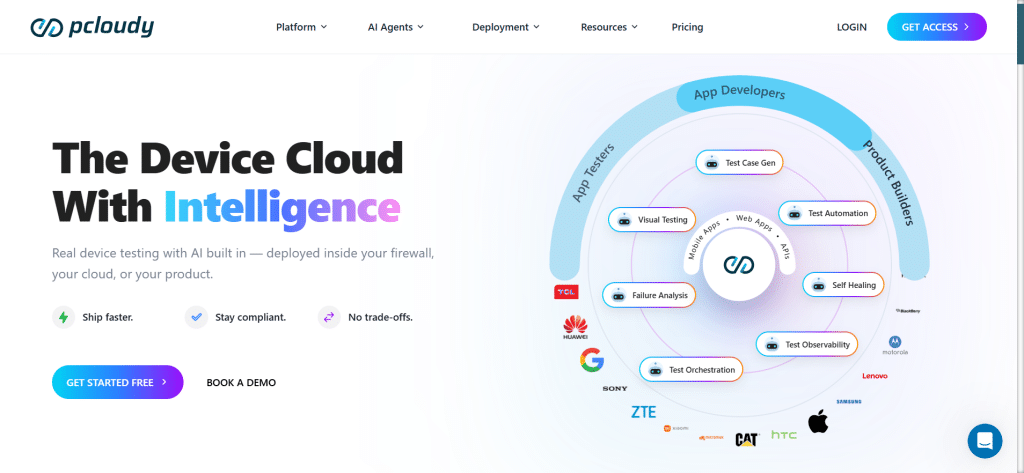
Although the Mac emulators offer basic iOS environment access, they don’t replicate mobile device real-world behaviors. However, frameworks like Pcloudy, provide access to physical Android and iOS devices by providing real-device cloud-based testing and offering precise, production-grade validation across the complete mobile testing ecosystem. Let’s take a look at some reasons why Pcloudy is the right choice.
- Automation With CI/CD Integration
Pcloudy seamlessly integrates with various CI/CD workflows and automation pipelines and works with popular tools such as Azure DevOps, GitHub Actions, Jenkins, and Appium. All of this enables early defect detection, accelerated feedback, and continuous testing to help QA teams streamline releases.
- Enterprise Grade Deployment
Whether private cloud, public cloud, or an on-premise deployment, this platform has it all covered. Pcloudy’s flexible architecture offers extensive support for highly regulated industries such as e-commerce, Healthcare, and BFSI, which provides enterprises with the much-needed confidence in data privacy, compliance, and security.
- AI-Powered Test Acceleration
AI-powered testing, being Pcloudy’s core feature, transforms how our QA teams carry out the validation of mobile applications, thus making your testing faster, smarter, and much more efficient. AI intelligently reduces cycle time, and detects functional and performance bottlenecks by prioritizing high-risk tests before by leveraging historical test data and predicting potential failures.
Moreover, it recommends the most appropriate device combination, configurations, and OS versions to optimize test coverage while maximizing CI/CD efficiency by scheduling automated tests. By picking tests with the most intense user impact and prioritizing them early on.
Conclusion
Mac emulators provide accessible ways for running Mac OS on a PC for experimentation and development, despite introducing some hardware, common licensing, and performance limitations. At this point, it’s obvious that cloud-hosted real Mac hardware is the ideal choice for long-term reliability and scalability. Moreover, 2026 is no longer the year we tiptoe around how powerful AI is turning out to be.
Therefore, Pcloudy combines AI-powered insights and real device accuracy to enable smarter and faster testing that reduces costs, saves time, and delivers highly reliable mobile applications that have the trust of the user base. Sign up for its 30-day free trial now and see for yourself.
FAQs
Can you legally run macOS on a Windows PC?
Yes, it’s possible to legally run macOS on a Windows PC, but only through licensed cloud Mac providers.
Is there a free Mac emulator for PC?
VirtualBox and QEMU are two of the popular Mac emulators for PC for free but require technical setup.
What is the safest way to run macOS on a PC?
The safest way to run macOS on a PC is by using compliant cloud providers such as MacStadium or AWS EC2 Mac instances.
Is Hackintosh appropriate for professional environments?
No, Hackingtosh might not always be suitable for professional environments due to licensing and stability risks.
Test on real devices. Ship with confidence.
Read more: