
Integrating Tosca with Pcloudy
Overview
This guide explains how to integrate Tricentis Tosca with Pcloudy to record, build, and execute mobile test cases on cloud devices. It covers connecting Tosca to Pcloudy, configuring device and application settings, setting desired capabilities, scanning mobile app screens to create reusable Modules, and executing test cases using the Pcloudy Appium server. Follow the step by step instructions to set up and run mobile test automation on real cloud devices. For easier navigation and understanding we have split the doucmentation into two parts, Part 1 walks through connecting Tosca to a pCloudy cloud device and recording (scanning) your mobile app so Tosca captures its screens as reusable Modules. Part 2 covers assembling those modules into a test case, configuring the pCloudy capabilities, and executing the test.
Part 1: Recording a Mobile Test Case
Step 1 — Start the Mobile Scan
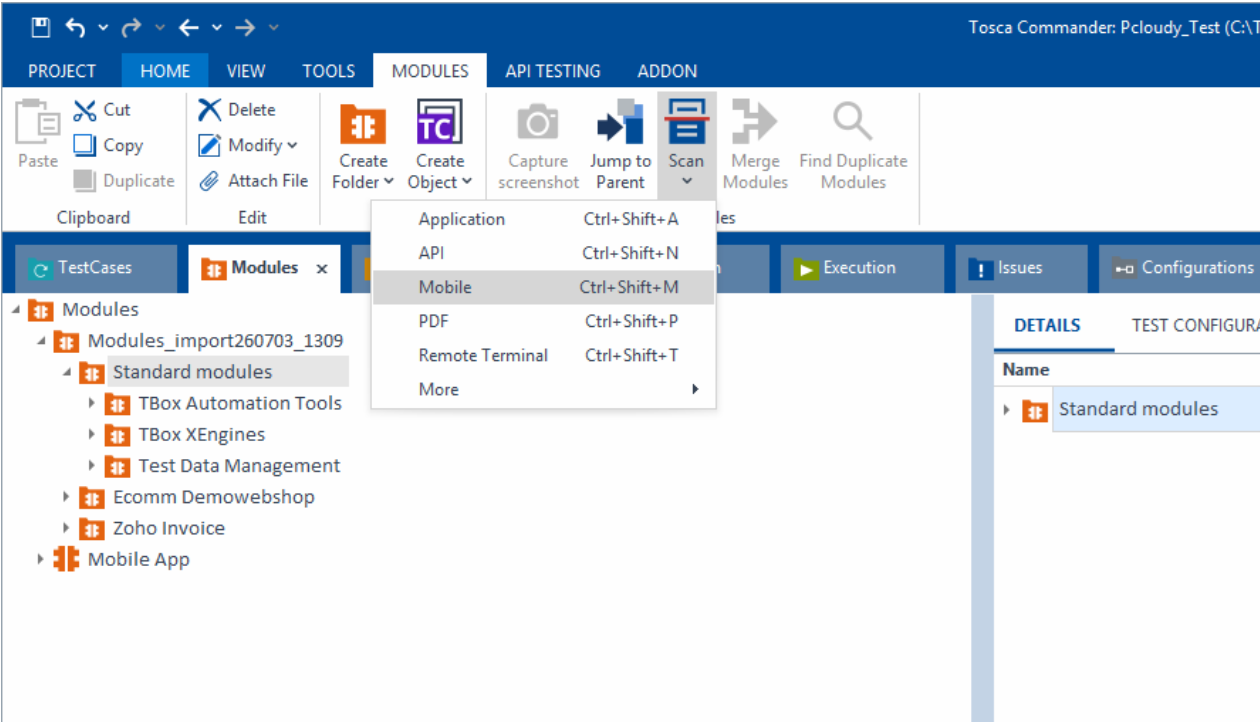
- In Tosca Commander, go to the Modules tab → Home ribbon → click the Scan dropdown → select Mobile (or use the shortcut Ctrl+Shift+M).
Step 2 — Select Connection, Device, and Application
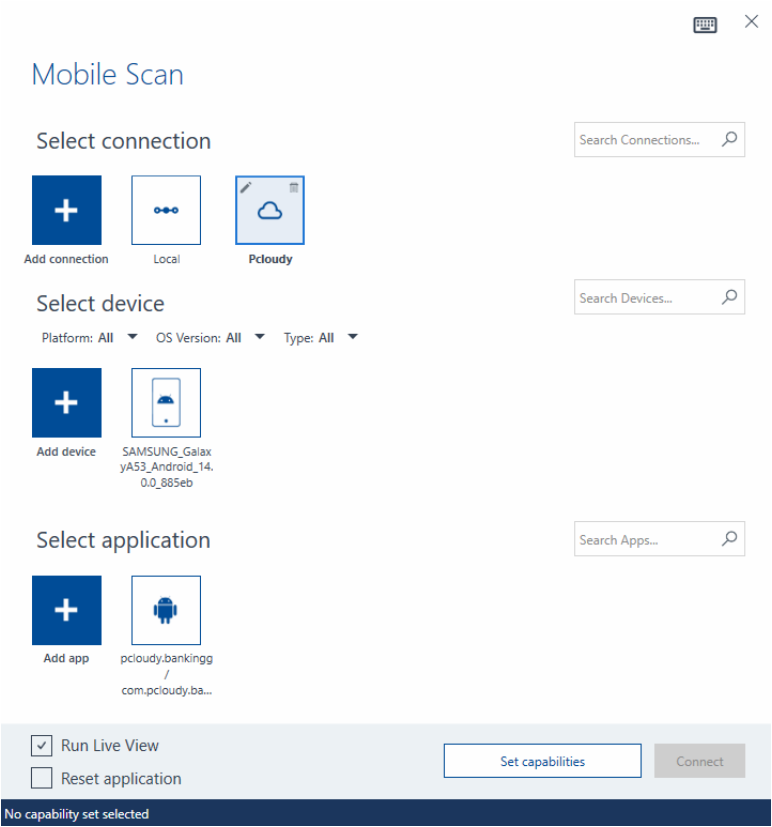
In the Mobile Scan window:
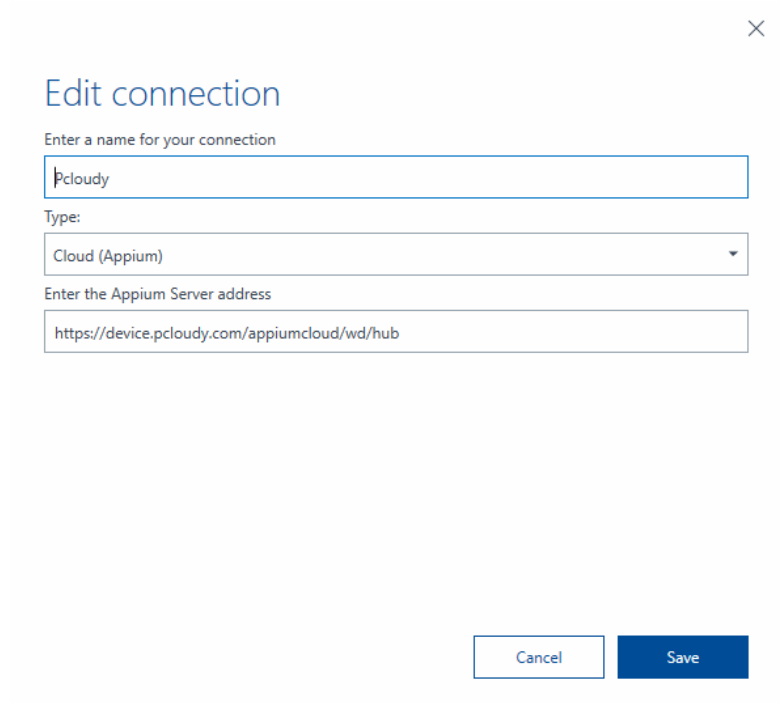
- Create connection: give the connection a name, e.g. Pcloudy connection.
- Then pick the device and application you want to scan (Steps 3 and 4 below cover adding new ones).
Step 3 — Add or Edit a Device (if needed)
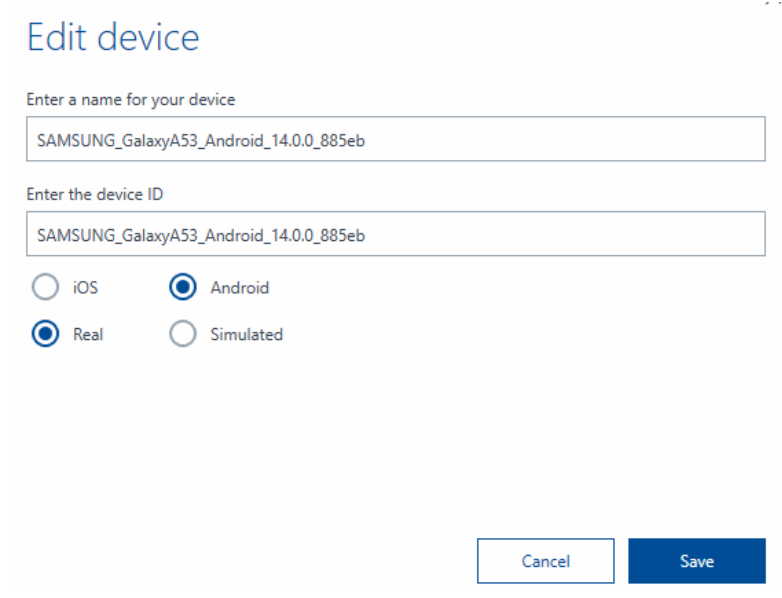
If you are adding a new device, the Edit device dialog appears. Fill in:
• Name: e.g. SAMSUNG_GalaxyA52_Android_13.0.0_fcafd
• Device ID: same as the name, or the actual device identifier
• Platform: iOS / Android
• Type: Real / Simulated
Click Save.
Step 4 — Add or Edit the Application (if needed)
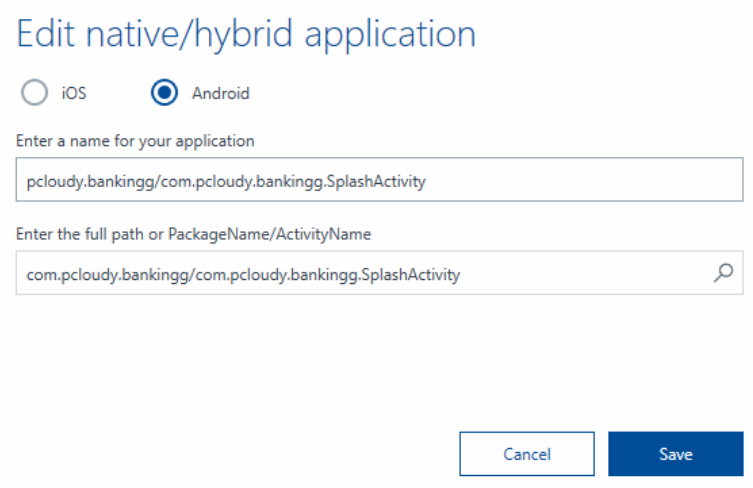
If you are adding a new app, the Edit native/hybrid application dialog appears. Fill in:
• Platform: iOS / Android
• Application name: e.g. pcloudy.bankingg/com.pcloudy.bankingg.SplashActivity
• Full path or PackageName/ActivityName: e.g. com.pcloudy.bankingg/com.pcloudy.bankingg.SplashActivity
Click Save.
Step 5 — Set Capabilities
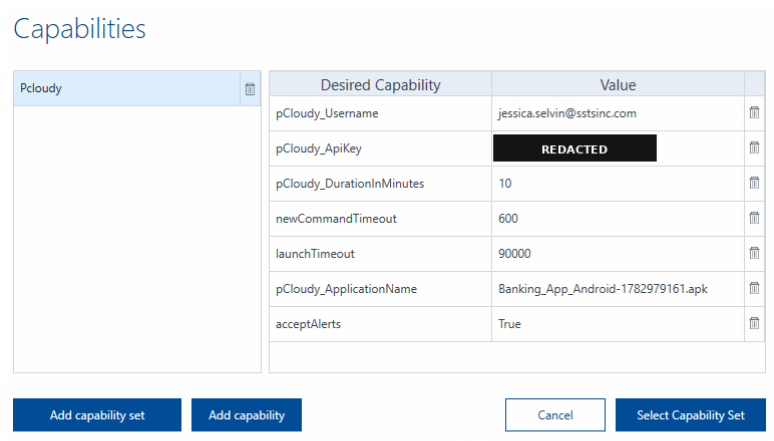
Click Set capabilities to define the desired capabilities for the session:
| Capability | Example Value |
|---|---|
| pCloudy_Username | jessica.selvin@sstsinc.com |
| pCloudy_ApiKey | •••••••••••••••• |
| pCloudy_DurationInMinutes | 10 |
| newCommandTimeout | 600 |
| launchTimeout | 90000 |
| pCloudy_ApplicationName | Banking_App_Android-1782979161.apk |
| acceptAlerts | True |
Tip: save these values as a capability set (e.g. “Pcloudy”) for reuse, then click Select Capability Set in future sessions.
Step 6 — Connect and Record
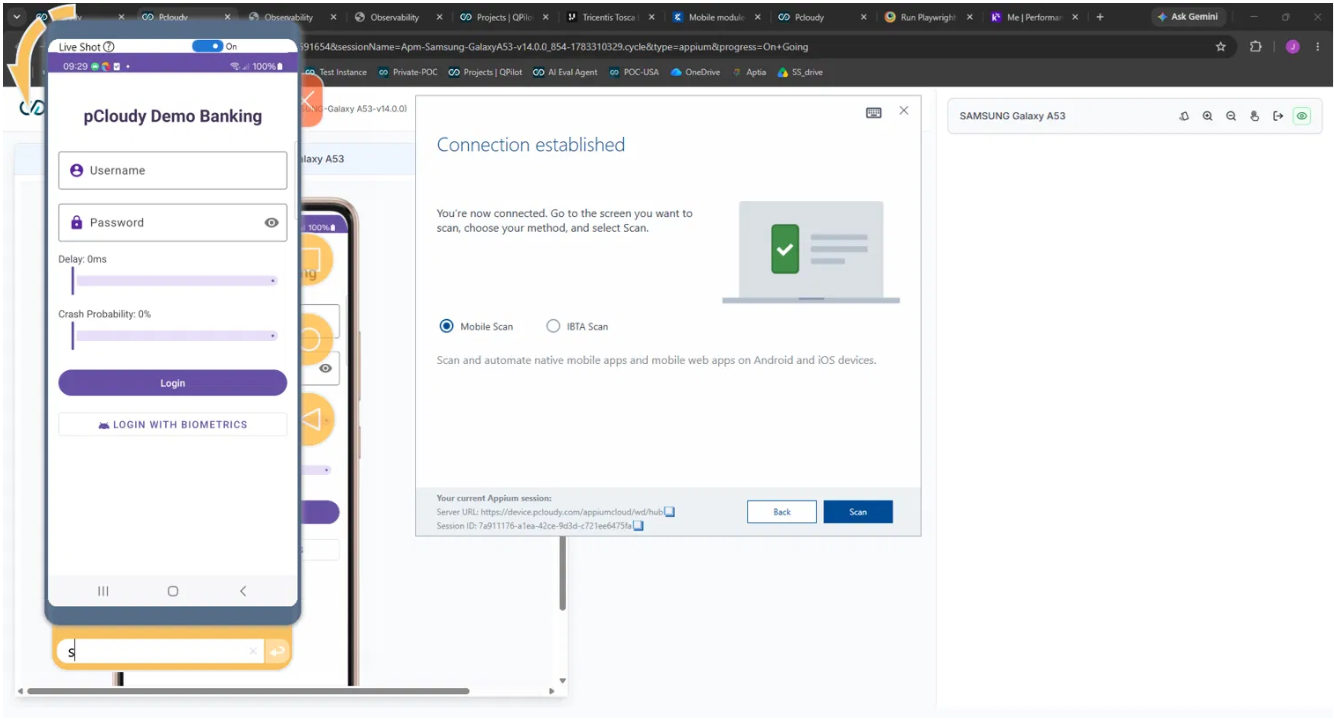
Once connected, a live device view opens in the browser (e.g. the pCloudy Demo Banking app). A “Connection established” message confirms the Appium session is active and shows:
• Server URL — the Appium hub URL
• Session ID
Choose Mobile Scan and click Scan to begin capturing the app’s UI elements.
Step 7 — Interact with the App to Capture Modules
While the live session is active, interact with the app screens — for example, tap on Username, Password, and the Login button. Tosca captures each screen and control automatically as Modules.
Part 2: Building & Executing the Test Case
Step 1 — Build the Test Case
Drag the captured modules (Username, Password, Login) into a TestCase, and add the required test steps in sequence:
Set Desired Capabilities → Open Mobile App → Enter Username → Enter Password → Click Login
Step 2 — Configure the “Set Desired Capabilities” Step
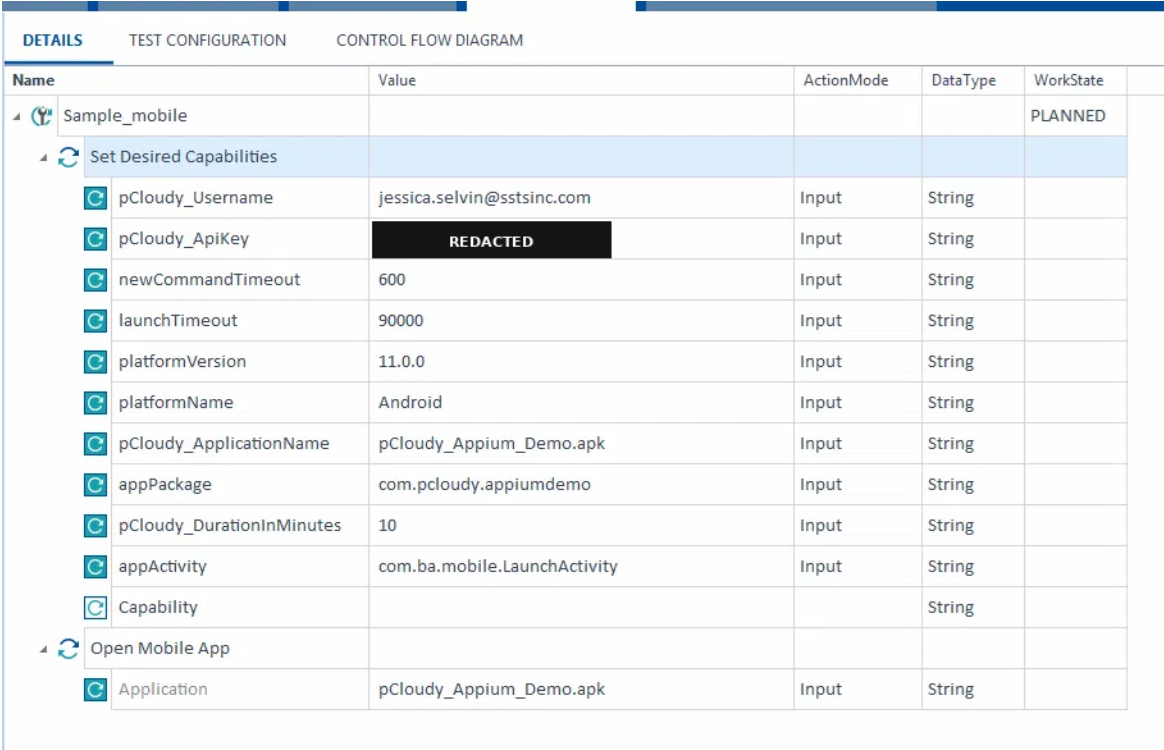
In the Details tab, populate the capability values (the same fields used during recording):
| Name | Value | ActionMode | DataType |
|---|---|---|---|
| pCloudy_Username | jessica.selvin@sstsinc.com | Input | String |
| pCloudy_ApiKey | •••••••••••••••• | Input | String |
| newCommandTimeout | 600 | Input | String |
| launchTimeout | 90000 | Input | String |
| platformVersion | 11.0.0 | Input | String |
| platformName | Android | Input | String |
| pCloudy_ApplicationName | pCloudy_Appium_Demo.apk | Input | String |
| appPackage | com.pcloudy.appiumdemo | Input | String |
| pCloudy_DurationInMinutes | 10 | Input | String |
| appActivity | com.ba.mobile.LaunchActivity | Input | String |
Then configure the Open Mobile App step with the Application value (e.g. pCloudy_Appium_Demo.apk).
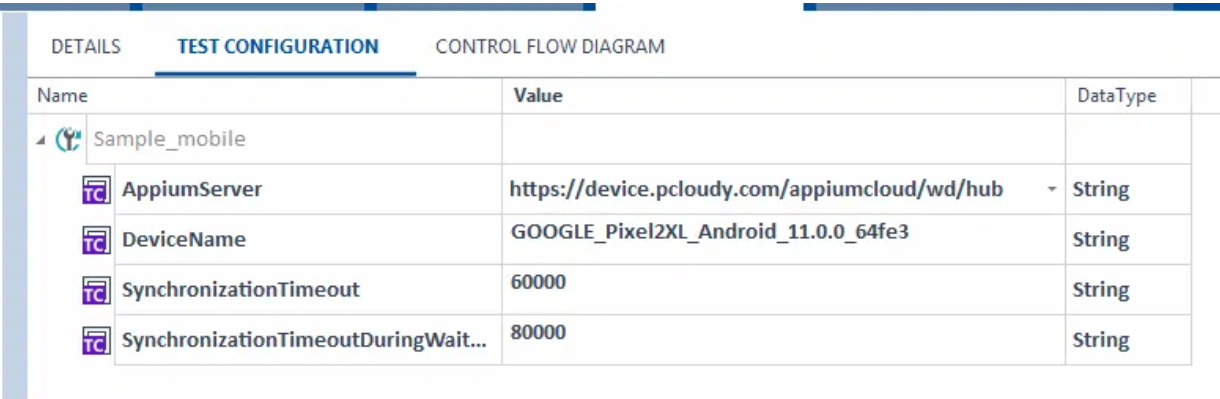
Step 3 — Set the Test Configuration
Switch to the Test Configuration tab and confirm or set the execution parameters:
| Name | Value | DataType |
|---|---|---|
| AppiumServer | https://device.pcloudy.com/appiumcloud/wd/hub | String |
| DeviceName | GOOGLE_Pixel2XL_Android_11.0.0_64fe3 | String |
| SynchronizationTimeout | 60000 | String |
| SynchronizationTimeoutDuringWait | 80000 | String |
****
Step 4 — Execute the Test Case
Right-click the test case in the Execution view and run it, or add it to an Execution List and run from there.
Did this page help you?