
Last updated on : 21 Jan 2025
Automating App Performance Testing
Overview
Users can now automate the App performance testing aspect and monitor the results in real time. In this help document, we will walk you through the process of enabling app performance automation and accessing the app performance report on the Pcloudy platform.
Pre-requisite
- User should be registered on Pcloudy platform
- User should have App Performance Testing activated on the account
Enabling App Performance Automation
To enable app performance automation, you need to add the following capability to your existing code:
Json
capabilities.setCapability("appPerformance", true);
This will allow you to collect app performance data during the execution of your test.
Accessing App Performance Report
Once the execution stops, you can access the app performance report on the Pcloudy platform by following these steps:
1. Through Reports Section
- Log in to the Pcloudy platform.
- Navigate to the Reports section.
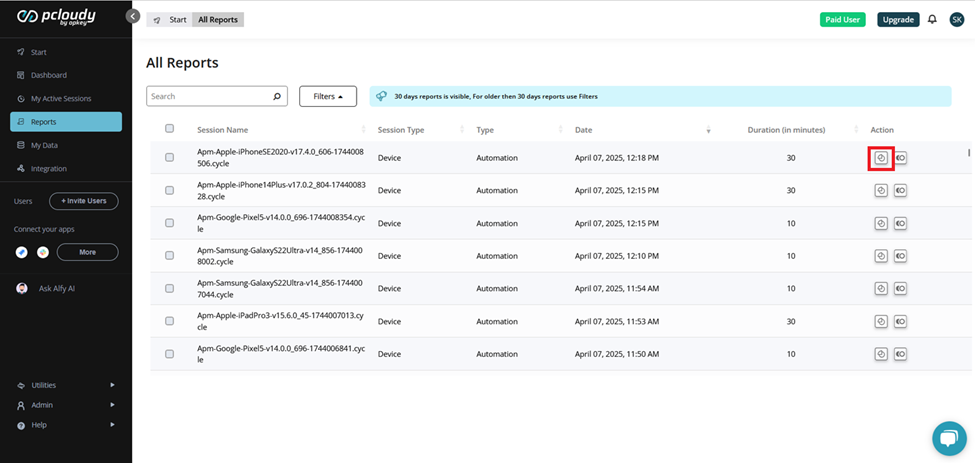
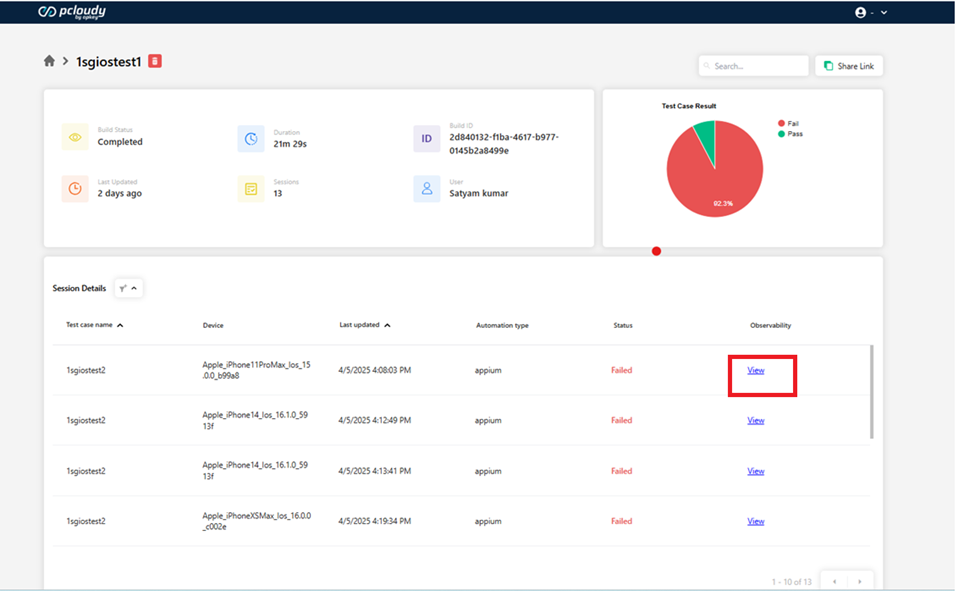
- Open the desired Build.
Under the Observability tab, click on View to open the App Performance Report.
2. Through Session Details
- Go to the Session list.
- Select the specific session you executed.
- Click on the Observability option.
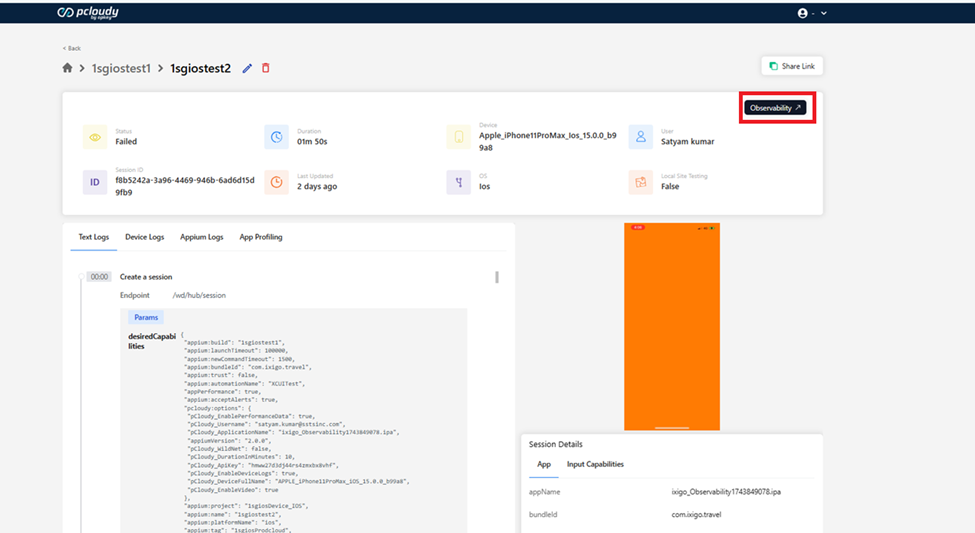
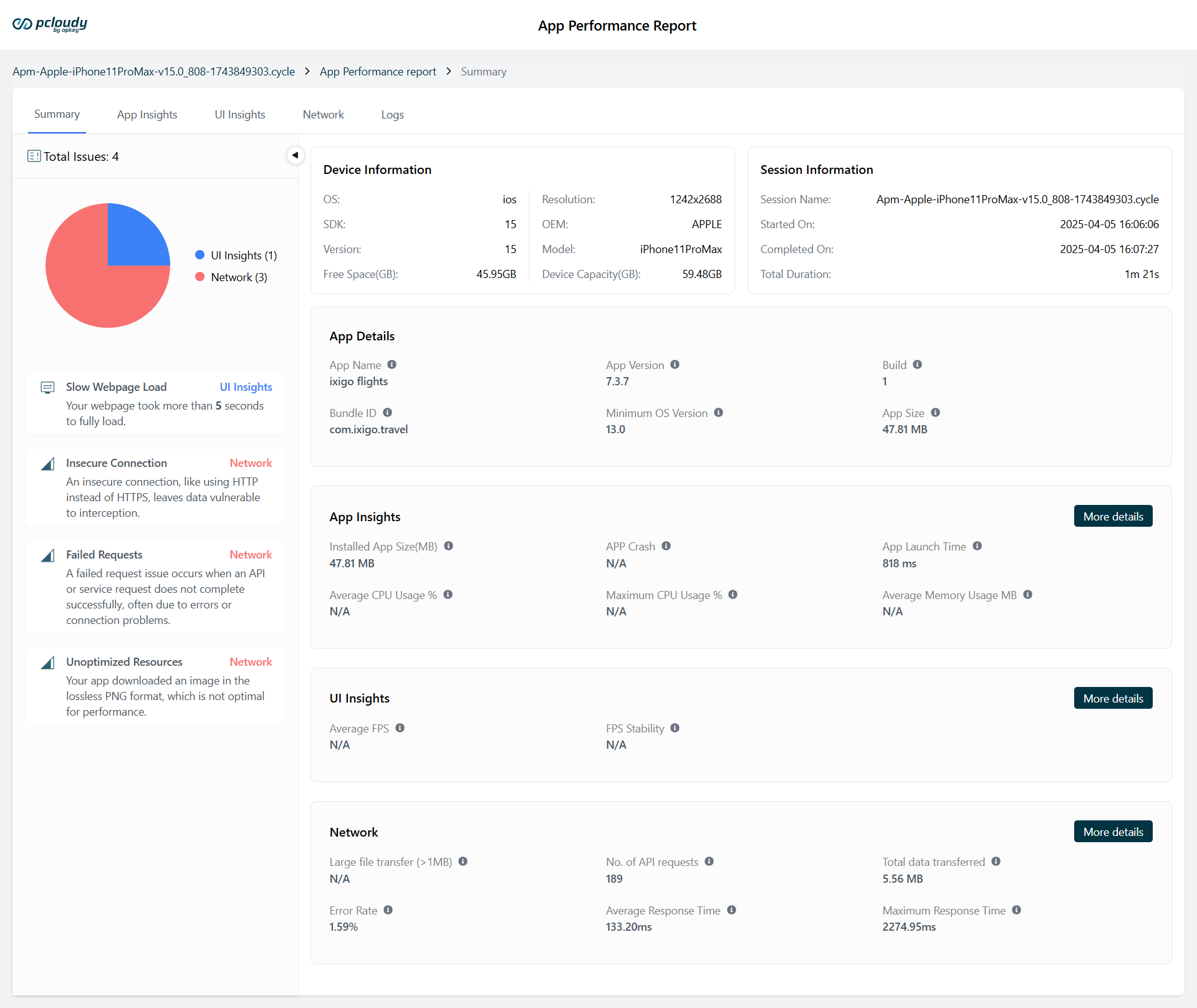
- The App Performance Report will be displayed.
Troubleshooting Tips
- Make sure you have added the app performance capability to your code.
- Ensure that the execution has stopped before trying to access the app performance report.
Did this page help you?