
Share Report
The Share Report feature allows users to generate a shareable link for any App Performance Report session. The link can be distributed to team members, stakeholders, or external collaborators who need to view the report without requiring a Pcloudy login. The link is time-limited — valid for 1 day.
Prerequisites
Ensure all of the following conditions are met before using the Share Report feature:
| # | Prerequisite | Details |
|---|---|---|
| 1 | Registered Pcloudy Account | The user generating the share link must have an active, registered account on the Pcloudy platform. New users can sign up at Pcloudy.com. |
| 2 | App Performance Plan | The account must be subscribed to a plan that includes App Performance testing. Without this plan, the App Performance module and its reports will not be accessible. |
| 3 | App Performance Report Generated | At least one App Performance session must have been executed and a report must be available. The Share Report option appears only on an existing, completed report — it cannot be used before a session is run. |
info
Note Plan Check - If the App Performance module is not accessible, please contact your Pcloudy account manager or reach out to support to verify your current plan and add-ons.
Feature Screenshot
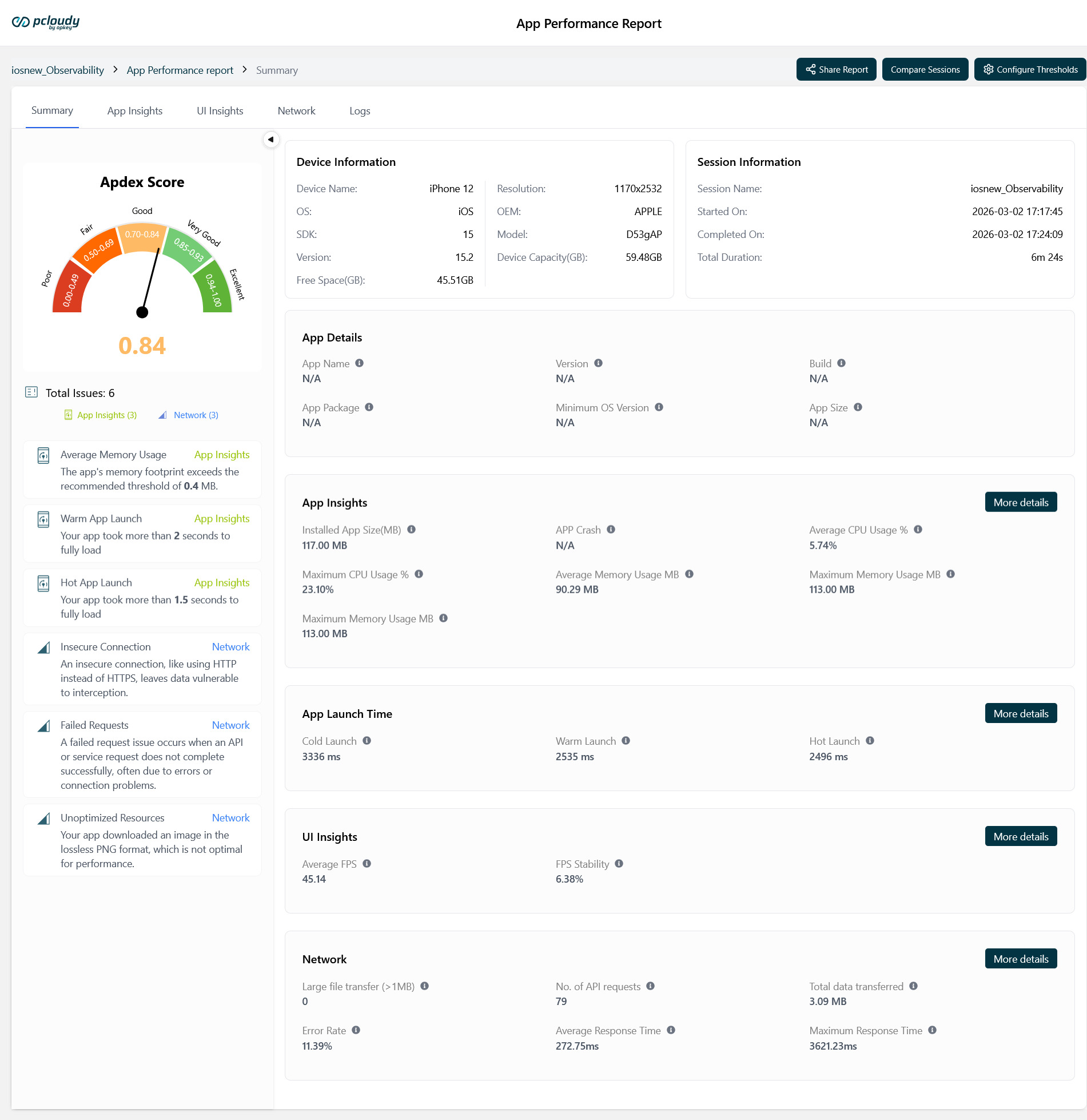
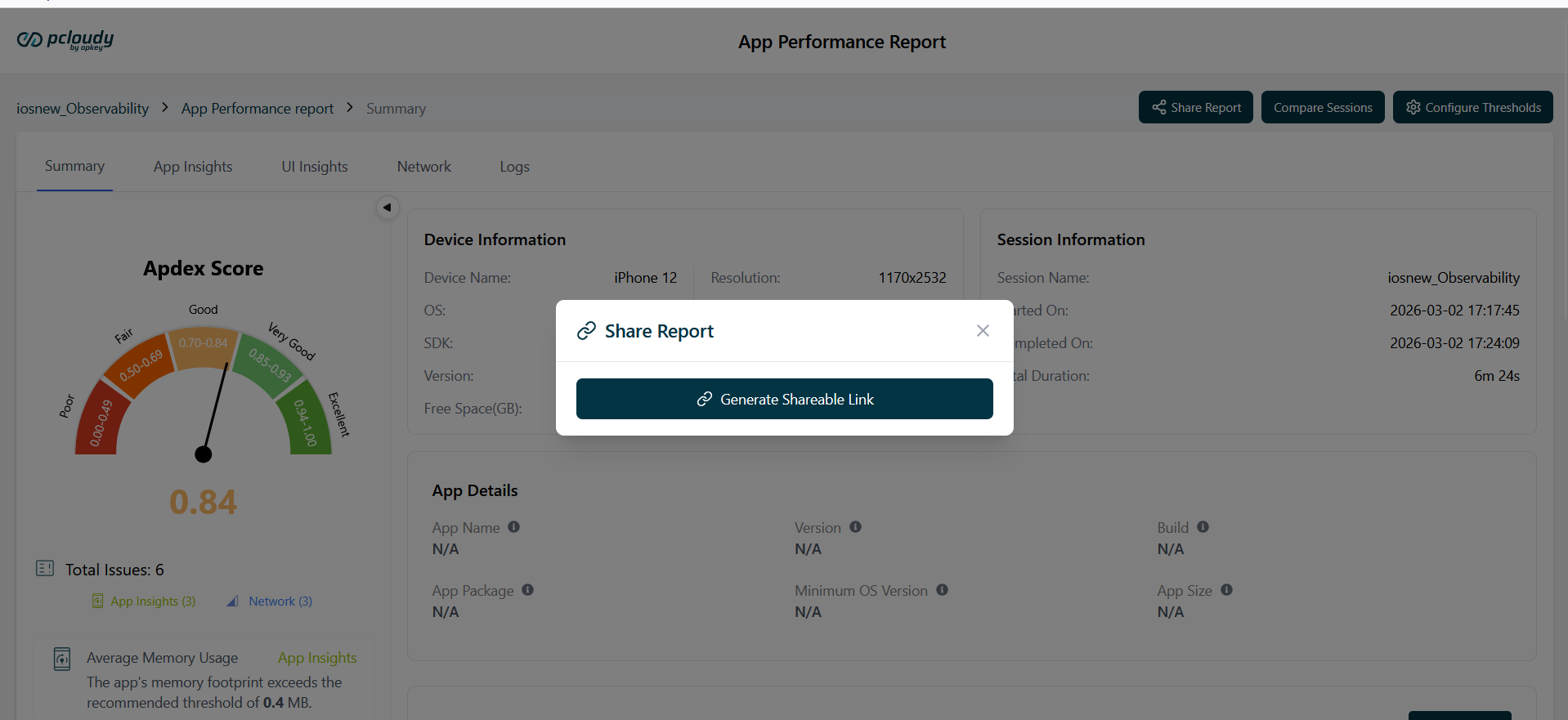
Share Report modal on the App Performance Report — Summary page
How to Access
Navigate to the Share Report button using the following steps:
| Step | Action |
|---|---|
| 1 | Open any App Performance session from the sessions list or directly from the Dashboard's Recent Sessions. |
| 2 | On the App Performance Report page, ensure you are on the Summary tab (default view). |
| 3 | Click the Share Report button in the top-right action bar, alongside Compare Sessions and Configure Thresholds. |
| 4 | The Share Report modal opens, displaying a pre-generated shareable link and a Copy button. |
| 5 | Click Copy to copy the link to your clipboard, then share it via email, chat, or any preferred channel. |
Key Behaviours & Properties
| Property | Detail |
|---|---|
| Link Access | Anyone with the link can view the report. |
| Link Expiry | The link expires in 24 hours. |
| Link Generation | The link is generated automatically when the Share Report modal is opened. No additional action is needed before copying. |
| Available From | Share Report is accessible from all tabs of the App Performance Report: Summary, App Insights, UI Insights, Network, and Logs. |
| Copy Action | Clicking Copy copies the full URL to the system clipboard. A confirmation indicator is shown after copying. |
Common Use Cases
- Sharing performance results with a developer or QA lead who does not have a Pcloudy account.
- Sending a report link to a client or product stakeholder for review after a performance testing session.
- Attaching a report link in a Jira ticket or bug report to provide context alongside failure details.
- Sharing session results in a team Slack channel or email thread for quick async review.
- Providing a performance benchmark report to management without granting platform access.
Did this page help you?